

Currently Empty: CFA0.00



Blog
The Ultimate WordPress 2026 Playbook: Build Like a Pro
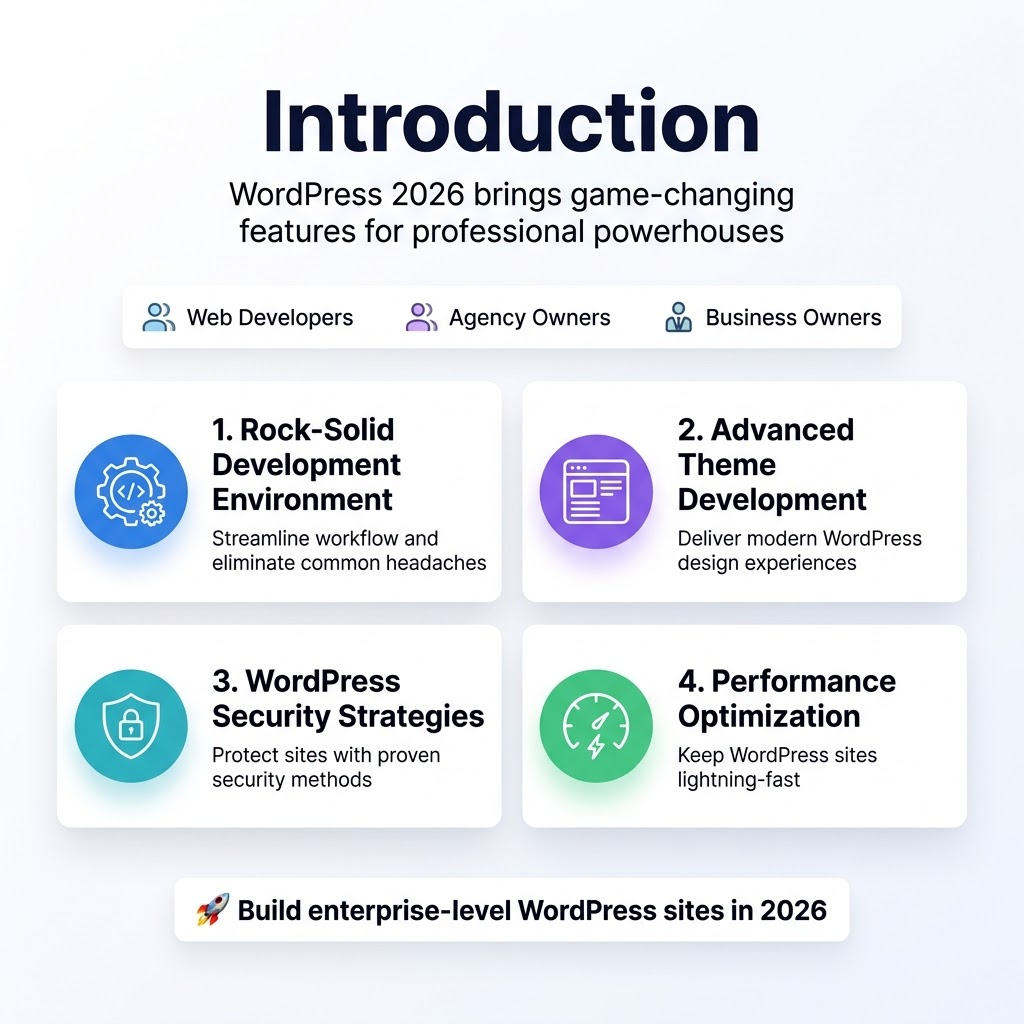
WordPress 2026 brings game-changing features that separate amateur sites from professional powerhouses. This comprehensive WordPress development guide is designed for web developers, agency owners, and ambitious business owners ready to master professional WordPress setup and build sites that compete at the enterprise level.
You’ll discover how to create a rock-solid development environment that streamlines your workflow and eliminates common headaches. We’ll dive deep into advanced WordPress theme development techniques that deliver modern WordPress design experiences your clients will love. You’ll also learn proven WordPress security strategies and WordPress performance optimization methods that protect your sites and keep them lightning-fast.
Ready to transform your WordPress skills? Let’s explore the cutting-edge WordPress features 2026 offers and build something extraordinary together.
Master the WordPress 2026 Environment Setup
The Ultimate WordPress 2026 Playbook:
Choose the Right Hosting Solution for Maximum Performance
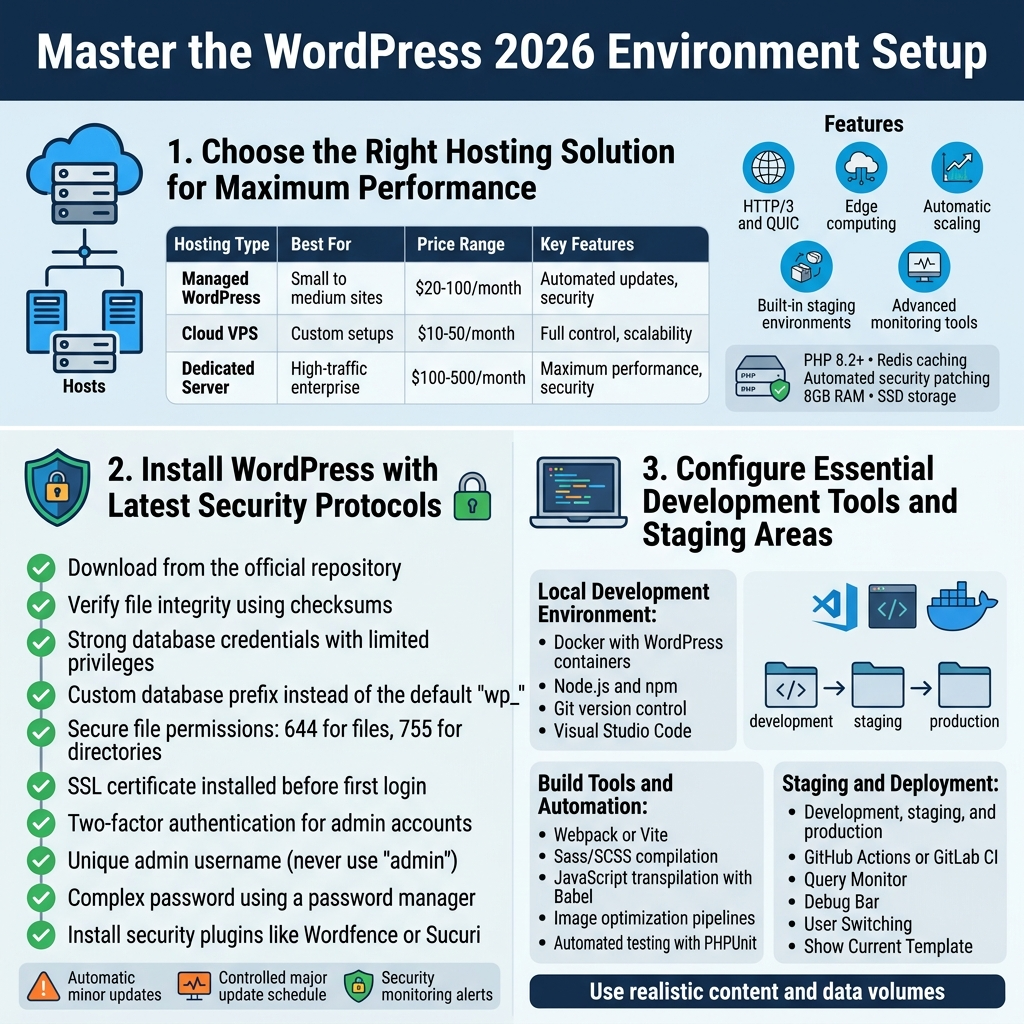
WordPress 2026 demands a hosting environment that can handle modern web technologies and emerging performance standards. Cloud hosting platforms like Google Cloud Platform, Amazon Web Services, or DigitalOcean provide the scalability and reliability that professional WordPress development requires.
Managed WordPress hosting services have evolved significantly, with providers now offering specialized PHP 8.2+ environments, built-in Redis caching, and automated security patching. WP Engine, Kinsta, and Cloudways lead the pack with their optimized server configurations specifically designed for WordPress performance optimization.
For enterprise WordPress projects, consider dedicated server resources with at least 8GB RAM, SSD storage, and CDN integration. The hosting solution should support:
- HTTP/3 and QUIC protocols for faster page loading
- Edge computing capabilities for global content delivery
- Automatic scaling during traffic spikes
- Built-in staging environments for safe testing
- Advanced monitoring tools for performance tracking
| Hosting Type | Best For | Price Range | Key Features |
|---|---|---|---|
| Managed WordPress | Small to medium sites | $20-100/month | Automated updates, security |
| Cloud VPS | Custom setups | $10-50/month | Full control, scalability |
| Dedicated Server | High-traffic enterprise | $100-500/month | Maximum performance, security |
Install WordPress with Latest Security Protocols
WordPress 2026 installation goes beyond the traditional five-minute setup. Security-first installation requires implementing multiple layers of protection from day one.
Start with a hardened server environment using the latest PHP 8.2 or 8.3 versions, which offer significant security improvements and performance benefits. Download WordPress directly from the official repository and verify file integrity using checksums to prevent compromised installations.
Configure your installation with these essential security measures:
- Strong database credentials with limited privileges
- Custom database prefix instead of the default “wp_”
- Secure file permissions (644 for files, 755 for directories)
- SSL certificate installation before the first login
- Two-factor authentication for admin accounts
During installation, create a unique admin username (never use “admin”) and generate a complex password using a password manager. Install security plugins like Wordfence or Sucuri immediately after completing the basic setup.
WordPress security in 2026 also means staying ahead of emerging threats. Enable automatic minor updates while keeping major updates on a controlled schedule. Set up security monitoring that alerts you to suspicious login attempts, file changes, and malware detection.
Configure Essential Development Tools and Staging Areas
Professional WordPress development in 2026 requires a robust toolkit that streamlines workflows and ensures code quality. Local development environments using Docker containers provide consistent setups across different machines and team members.
Set up your development stack with these components:
Local Development Environment:
- Docker with WordPress containers
- Node.js and npm for modern build tools
- Git version control with proper branching strategies
- Visual Studio Code with WordPress-specific extensions
Build Tools and Automation:
- Webpack or Vite for asset bundling
- Sass/SCSS compilation
- JavaScript transpilation with Babel
- Image optimization pipelines
- Automated testing with PHPUnit
Staging areas have become more sophisticated, with many developers using multiple environments: development, staging, and production. Each environment should mirror production as closely as possible while allowing safe testing of new features and updates.
Modern WordPress development workflows integrate continuous integration and deployment (CI/CD) pipelines. GitHub Actions or GitLab CI can automate testing, code quality checks, and deployments to staging environments.
Essential Development Plugins:
- Query Monitor for debugging database queries
- Debug Bar for development insights
- User Switching for testing different user roles
- Show Current Template for theme development
Version control becomes critical when working with WordPress themes and custom plugins. Use Git hooks to prevent sensitive configuration files from being committed, and maintain separate environment configurations for database connections and API keys.
The staging area should include realistic content and data volumes that match your production environment. This approach helps identify performance bottlenecks and compatibility issues before they affect live users.
Design Modern User Experiences with Advanced Theme Development
Build Custom Themes Using Block-Based Architecture
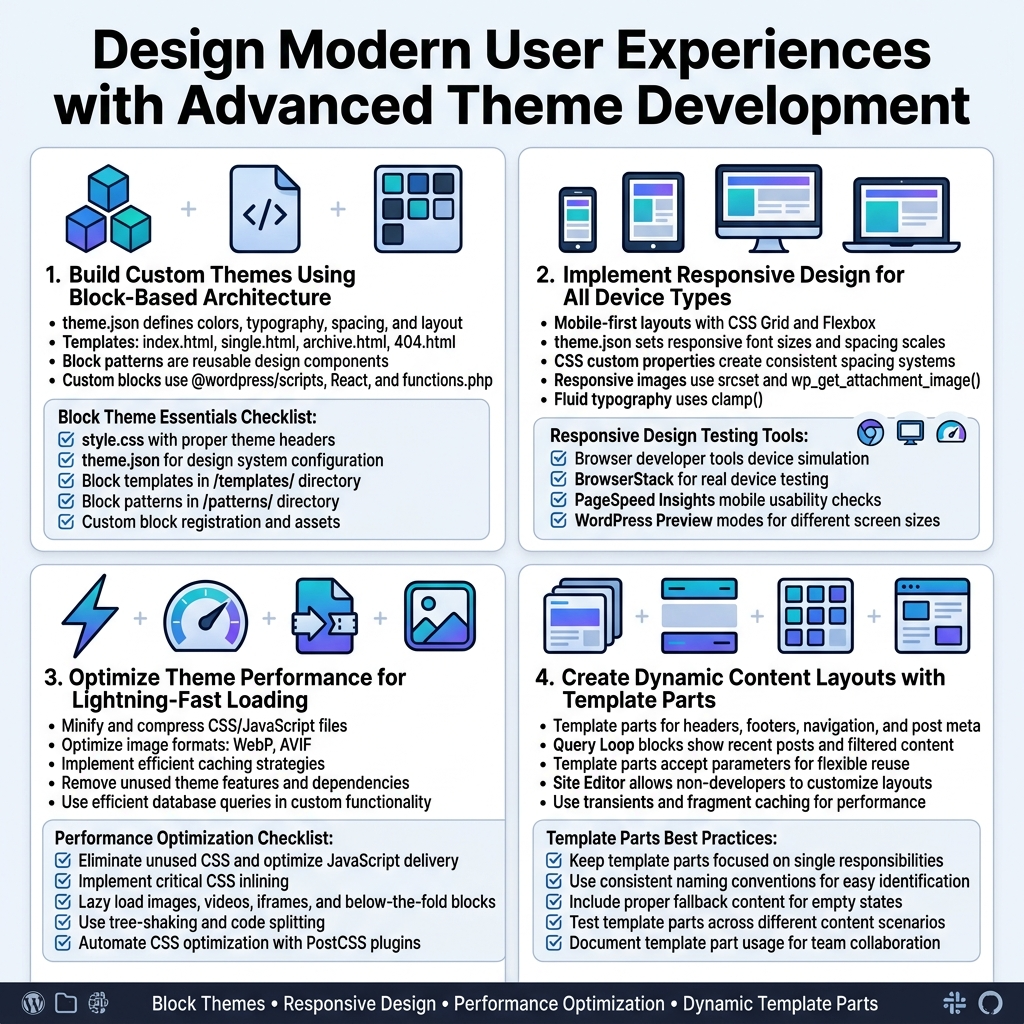
Block-based theme development represents the future of WordPress theme development. The Gutenberg editor’s full site editing capabilities require themes built with blocks as the foundation. Start by creating a theme.json file that defines your design system’s colors, typography, spacing, and layout settings. This file serves as your theme’s control center, establishing design tokens that maintain consistency across your entire site.
Your theme’s structure should include block templates for different page types – index.html, single.html, archive.html, and 404.html as minimum requirements. These HTML files use WordPress block markup instead of traditional PHP templates. Block patterns become reusable design components that users can insert anywhere on their site.
Custom blocks extend your theme’s capabilities beyond WordPress core blocks. Use the @wordpress/scripts package to scaffold custom blocks with modern JavaScript and React. Register your blocks in functions.php and include the necessary CSS and JavaScript files. Consider creating blocks for testimonials, feature sections, or industry-specific content layouts.
Block Theme Essentials Checklist:
style.csswith proper theme headerstheme.jsonfor design system configuration- Block templates in
/templates/directory - Block patterns in
/patterns/directory - Custom block registration and assets
Implement Responsive Design for All Device Types
Modern WordPress development demands mobile-first responsive design that works seamlessly across smartphones, tablets, desktops, and emerging devices. CSS Grid and Flexbox provide the foundation for flexible layouts that adapt to any screen size. Start with mobile breakpoints and progressively enhance for larger screens.
The WordPress block editor includes responsive controls for spacing, typography, and layout blocks. Your theme.json file should define responsive font sizes, spacing scales, and container widths. Use CSS custom properties (variables) to create consistent spacing systems that scale appropriately across devices.
Implement responsive images using WordPress’s built-in image sizes and the srcset attribute. The wp_get_attachment_image() function automatically generates responsive markup when properly configured. For hero images and banners, consider using CSS clamp() functions for fluid typography that scales smoothly between breakpoints.
Responsive Design Testing Tools:
- Browser developer tools device simulation
- BrowserStack for real device testing
- PageSpeed Insights mobile usability checks
- WordPress Preview modes for different screen sizes
Optimize Theme Performance for Lightning-Fast Loading
Theme performance optimization directly impacts user experience and search rankings. Start by auditing your theme’s assets – eliminate unused CSS, optimize JavaScript delivery, and implement critical CSS inlining. WordPress 2026 includes improved asset loading APIs that allow fine-grained control over when and how resources load.
Lazy loading should extend beyond images to include videos, iframes, and below-the-fold content blocks. The WordPress loading="lazy" attribute works automatically for images, but custom blocks may need additional optimization. Implement intersection observer patterns for complex animations and dynamic content loading.
CSS optimization involves removing unused styles, combining files where appropriate, and using modern CSS features that reduce code complexity. PostCSS plugins can automate much of this optimization during your build process. For JavaScript, tree-shaking eliminates unused code while code splitting ensures users only download necessary functionality.
Performance Optimization Checklist:
- Minify and compress CSS/JavaScript files
- Optimize image formats (WebP, AVIF support)
- Implement efficient caching strategies
- Remove unused theme features and dependencies
- Use efficient database queries in custom functionality
Create Dynamic Content Layouts with Template Parts
Template parts revolutionize how WordPress themes handle dynamic content. These reusable components can be mixed and matched across different page templates, creating consistent design patterns while maintaining flexibility. Create template parts for headers, footers, navigation menus, post meta information, and content sections.
Query Loop blocks enable dynamic content display without custom PHP coding. Configure these blocks to show recent posts, related content, or filtered post collections based on categories, tags, or custom fields. Template parts can accept parameters, making them adaptable to different contexts while maintaining consistent styling.
Site Editor’s template creation tools allow non-developers to customize layouts using your predefined template parts. This democratizes design customization while ensuring brand consistency. Advanced developers can create template parts that accept block patterns as children, enabling complex layout combinations.
Dynamic content layouts benefit from proper caching strategies. Use WordPress’s transient API for expensive queries and implement fragment caching for template parts that don’t change frequently. This approach maintains dynamic functionality while delivering static-like performance.
Template Parts Best Practices:
- Keep template parts focused on single responsibilities
- Use consistent naming conventions for easy identification
- Include proper fallback content for empty states
- Test template parts across different content scenarios
- Document template part usage for team collaboration
Leverage Cutting-Edge WordPress Features and Functionality
Harness the Full Power of the Block Editor
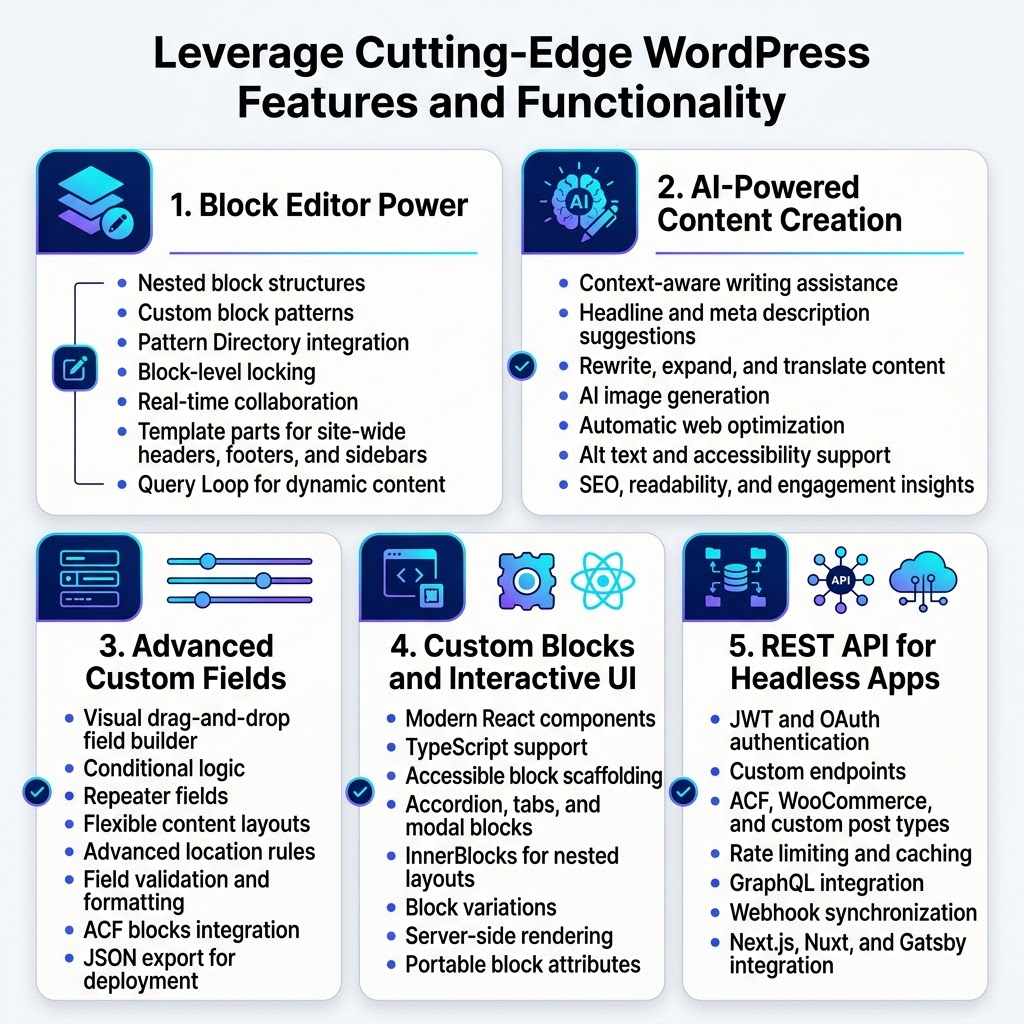
WordPress 2026’s Block Editor has evolved into a sophisticated visual builder that rivals premium page builders. The Gutenberg interface now supports nested block structures, allowing you to create complex layouts without touching a single line of code. Custom block patterns save hours of development time by providing reusable design templates that maintain consistency across your site.
The Pattern Directory integration means you can access thousands of professionally designed layouts directly within your editor. Block-level locking prevents accidental edits to critical sections while still allowing content updates. Real-time collaboration features enable teams to work simultaneously on the same post, with conflict resolution that keeps everyone in sync.
Template parts have become incredibly powerful, letting you build site-wide headers, footers, and sidebar components that automatically update across all pages. The Query Loop block now handles dynamic content filtering with custom taxonomies and meta queries, making database-driven layouts simple to implement.
Integrate AI-Powered Content Creation Tools
Content creation in WordPress 2026 gets a major boost with integrated AI assistants that understand context and brand voice. These tools analyze your existing content to suggest relevant topics, optimize headlines for engagement, and even generate meta descriptions that improve search rankings.
The WordPress AI Writing Assistant connects directly with leading language models to provide real-time suggestions as you type. It can expand bullet points into full paragraphs, rewrite content for different audiences, or translate text while maintaining your site’s tone.
Image generation capabilities let you create custom visuals without leaving the dashboard. Simply describe what you need, and the AI produces multiple options that match your brand colors and style guidelines. These generated images are automatically optimized for web delivery and include proper alt text for accessibility.
Content optimization algorithms analyze readability, SEO potential, and engagement factors to suggest improvements. The system learns from your most successful posts to recommend content structures that resonate with your specific audience.
Implement Advanced Custom Fields for Dynamic Content
Advanced Custom Fields (ACF) in WordPress 2026 transforms static websites into dynamic content management systems. The visual field builder makes creating complex data structures as simple as drag-and-drop, while conditional logic ensures users only see relevant form fields.
Repeater fields handle variable content sections like team members, testimonials, or portfolio items without requiring developer intervention. The flexible content field type lets content creators mix and match predefined layouts, giving them design control while maintaining visual consistency.
Location rules have expanded beyond post types to include user roles, device types, and even time-based conditions. This granular control ensures custom fields appear exactly when and where they’re needed. Field validation prevents data entry errors, while formatting options ensure consistent output regardless of who’s managing content.
The ACF blocks integration bridges custom fields with the Block Editor, creating reusable components that non-technical users can confidently manage. JSON export functionality makes field group deployment across multiple environments seamless.
Build Interactive User Interfaces with Custom Blocks
Custom block development in WordPress 2026 leverages modern React components with enhanced TypeScript support. The @wordpress/create-block scaffolding tool generates production-ready block structures with built-in accessibility features and responsive design patterns.
Interactive elements like accordions, tabs, and modal windows work seamlessly within the editor preview, giving content creators immediate visual feedback. The InnerBlocks API supports nested content structures, enabling complex layouts like multi-column designs with individually editable sections.
Block variations provide multiple presentation options for the same content type. A testimonial block might offer card, quote, and carousel variations, all sharing the same underlying data structure but presenting information differently based on design needs.
Server-side rendering ensures custom blocks maintain functionality even when JavaScript is disabled. The block supports attributes define exactly what data gets stored in the database, keeping content portable between themes and reducing long-term technical debt.
Utilize WordPress REST API for Headless Applications
WordPress 2026’s REST API has matured into a robust backend solution for headless applications. Enhanced authentication methods include JWT tokens and OAuth integration, providing secure access for mobile apps and external services.
Custom endpoints extend API functionality beyond core WordPress features. You can expose Advanced Custom Fields data, WooCommerce products, or any custom post type through standardized JSON responses. Rate limiting and caching mechanisms ensure API performance remains optimal under heavy load.
The GraphQL integration offers more efficient data fetching with single requests returning exactly the information your frontend needs. This reduces bandwidth usage and improves application performance, especially important for mobile experiences.
Webhook support enables real-time synchronization between WordPress and external systems. When content updates occur, connected applications receive immediate notifications, keeping distributed systems perfectly synchronized without constant polling.
Frontend frameworks like Next.js, Nuxt, and Gatsby have dedicated WordPress integration packages that streamline the development process. These tools handle authentication, caching, and data transformation automatically, letting developers focus on creating exceptional user experiences.
Secure Your WordPress Site Like a Cybersecurity Expert
Implement Multi-Layer Security Protocols
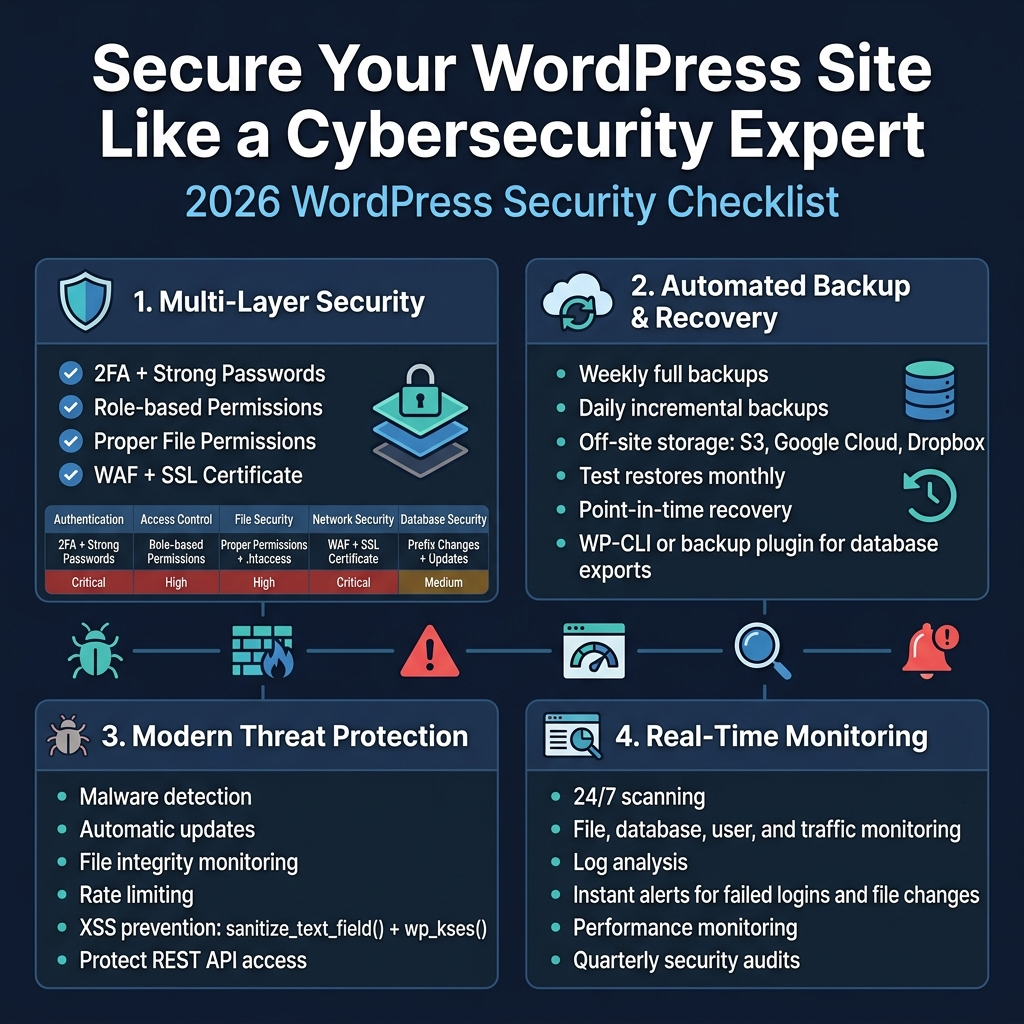
Security hardening your WordPress 2026 site requires a fortress-like approach where multiple defensive layers work together. Start with user authentication by enabling two-factor authentication (2FA) for all administrator accounts. WordPress security plugins like Wordfence or Sucuri provide robust 2FA options that integrate seamlessly with mobile authenticator apps.
Configure role-based access controls to limit user permissions. Never assign administrator privileges unless absolutely necessary. Create custom user roles that provide only the minimum access required for specific tasks. This principle of least privilege significantly reduces your attack surface.
File permissions play a crucial role in WordPress security. Set directories to 755 and files to 644, with wp-config.php locked down to 600. Block direct access to sensitive files by adding proper .htaccess rules that deny execution of PHP files in upload directories.
Implement a Web Application Firewall (WAF) that filters malicious traffic before it reaches your server. Cloud-based solutions like Cloudflare or server-level firewalls provide excellent protection against common attack vectors including SQL injection, cross-site scripting (XSS), and brute force attempts.
| Security Layer | Implementation | Priority Level |
|---|---|---|
| Authentication | 2FA + Strong Passwords | Critical |
| Access Control | Role-based Permissions | High |
| File Security | Proper Permissions + .htaccess | High |
| Network Security | WAF + SSL Certificate | Critical |
| Database Security | Prefix Changes + Regular Updates | Medium |
Configure Automated Backup and Recovery Systems
Automated backups serve as your ultimate safety net when security incidents occur. WordPress 2026 environments require comprehensive backup strategies that cover files, databases, and configurations. Schedule full backups weekly and incremental backups daily to capture all changes without consuming excessive storage.
Choose backup solutions that store copies in multiple locations. Cloud storage services like Amazon S3, Google Cloud Storage, or Dropbox provide reliable off-site storage options. Local backups alone won’t protect you from server failures or ransomware attacks that target your entire infrastructure.
Test your backup restoration process regularly. Many site owners discover their backups are corrupted or incomplete only when disaster strikes. Create a staging environment where you can practice restoration procedures and verify backup integrity monthly.
Implement point-in-time recovery capabilities that allow you to restore your site to any moment within the past 30 days. This granular control proves invaluable when identifying exactly when security breaches occurred and rolling back to clean states.
Database backup strategies require special attention since WordPress stores critical content and settings in MySQL databases. Use tools like WP-CLI or professional backup plugins that handle database exports with proper character encoding and table structure preservation.
Protect Against Modern Cyber Threats
WordPress security threats evolve rapidly, requiring proactive defense strategies. Malware detection goes beyond simple virus scanning – modern threats include cryptojacking scripts, backdoor injections, and sophisticated botnet participation code.
Keep WordPress core, themes, and plugins updated religiously. Security vulnerabilities in outdated software provide easy entry points for attackers. Enable automatic updates for minor releases while carefully testing major updates in staging environments first.
Monitor file integrity to detect unauthorized changes. Security plugins can create checksums of your core files and alert you when modifications occur. This early warning system helps identify compromises before they cause significant damage.
Implement rate limiting to prevent brute force attacks against login pages and API endpoints. WordPress 2026’s REST API provides powerful functionality but also creates additional attack vectors. Configure proper authentication and rate limiting for all API access points.
Cross-site scripting (XSS) prevention requires careful input validation and output sanitization. Use WordPress’s built-in sanitization functions like sanitize_text_field() and wp_kses() when handling user input. Never trust data from forms, URL parameters, or database queries without proper cleaning.
Monitor Site Health with Real-Time Security Scanning
Continuous monitoring provides early detection of security issues before they escalate. Real-time scanning tools analyze your WordPress installation for malware, vulnerabilities, and suspicious activities around the clock.
Security monitoring should cover multiple vectors: file system changes, database modifications, user behavior patterns, and network traffic anomalies. Professional monitoring services provide 24/7 surveillance that individual site owners can’t maintain manually.
Log analysis reveals attack patterns and helps identify persistent threats. WordPress generates various log files including error logs, access logs, and security event logs. Parsing these logs manually becomes overwhelming, so invest in log management tools that aggregate and analyze data automatically.
Set up alerting systems that notify you immediately when security events occur. Configure notifications for failed login attempts, file modifications, plugin installations, and unusual traffic spikes. Mobile alerts ensure you can respond quickly even when away from your desk.
Performance monitoring intersects with security monitoring since attacks often impact site speed and availability. Sudden performance degradation might indicate DDoS attacks, malware infections, or resource-intensive crypto mining scripts running on your server.
Regular security audits complement automated monitoring by providing comprehensive assessments of your security posture. Schedule quarterly penetration testing and vulnerability assessments to identify weaknesses before attackers do.
Optimize Performance for Professional-Grade Speed
Master Advanced Caching Strategies
Caching transforms sluggish WordPress sites into lightning-fast experiences. In WordPress 2026, advanced caching strategies go beyond simple page caching to include sophisticated multi-layer approaches that dramatically boost WordPress performance optimization.
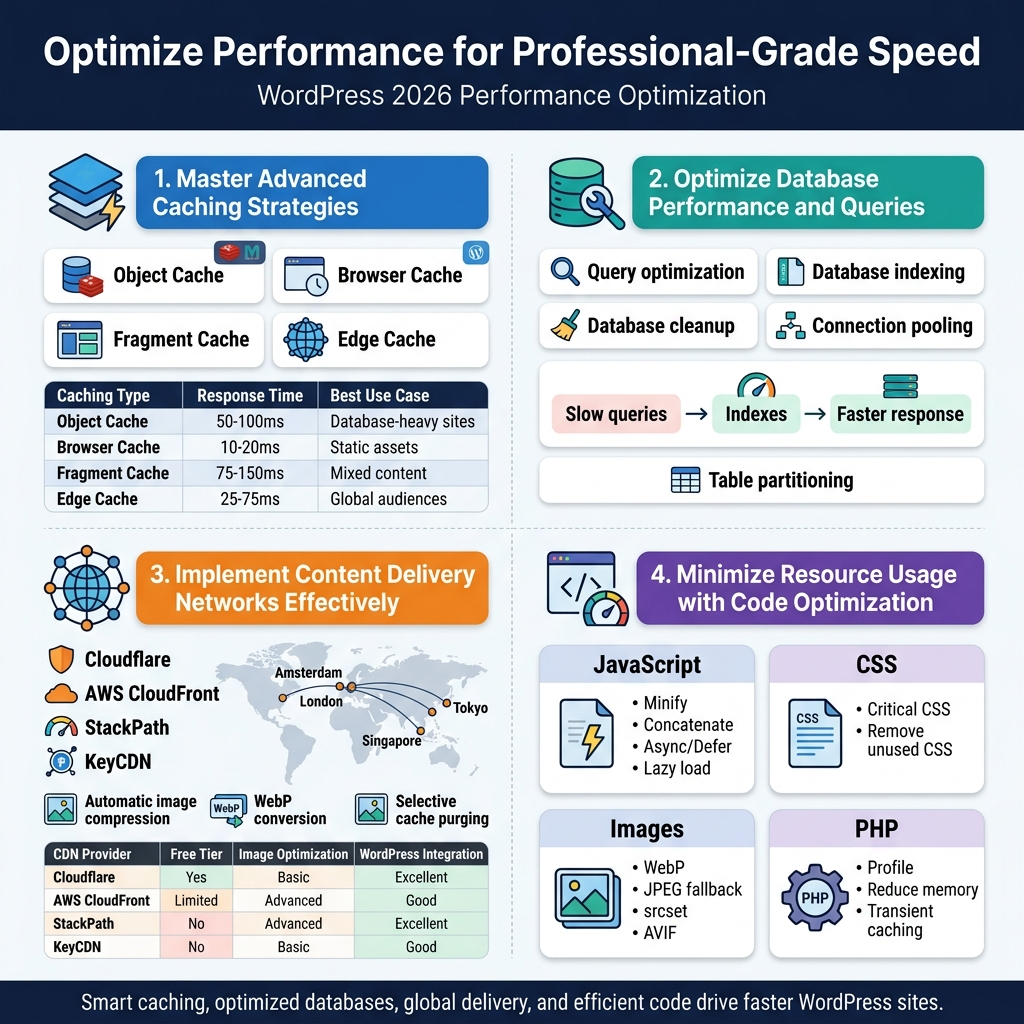
Object caching stores database query results in memory, preventing repetitive database calls. Redis and Memcached serve as powerful object caching solutions, with Redis offering additional data structure support for complex applications. Configure persistent object caching through plugins like Redis Object Cache or implement custom solutions for enterprise WordPress deployments.
Browser caching leverages visitor devices to store static assets locally. Set proper cache headers for images, CSS, and JavaScript files with expiration times ranging from one week for frequently updated content to one year for static assets. HTTP/2 server push takes this further by proactively sending critical resources before browsers request them.
Fragment caching targets specific page sections rather than entire pages, perfect for dynamic sites with user-specific content. Cache navigation menus, sidebars, and widget areas separately while keeping personalized elements dynamic. This approach works exceptionally well for e-commerce sites with shopping carts and user dashboards.
Edge caching through CDNs creates multiple cache layers globally. Cloudflare Workers and AWS CloudFront enable custom caching rules based on geographic location, device type, or user behavior patterns.
| Caching Type | Response Time | Best Use Case |
|---|---|---|
| Object Cache | 50-100ms | Database-heavy sites |
| Browser Cache | 10-20ms | Static assets |
| Fragment Cache | 75-150ms | Mixed content |
| Edge Cache | 25-75ms | Global audiences |
Optimize Database Performance and Queries
Database optimization directly impacts WordPress 2026 site speed and scalability. Poorly optimized databases create bottlenecks that no amount of caching can fully resolve.
Query optimization starts with identifying slow-performing queries using tools like Query Monitor or New Relic. Common culprits include unnecessary JOIN operations, missing indexes, and plugins generating inefficient queries. Replace complex meta queries with custom database tables for frequently accessed data.
Database indexing accelerates query performance by creating shortcuts to specific data. Add indexes to columns frequently used in WHERE clauses, particularly custom fields and taxonomies. Monitor index usage through MySQL’s EXPLAIN statement to ensure indexes actually improve performance rather than consuming unnecessary space.
Database cleanup removes accumulated bloat from revisions, spam comments, and orphaned metadata. Automate cleanup processes using WP-CLI commands or plugins like WP-Optimize, but always backup before bulk operations. Consider implementing revision limits and automatic deletion of spam comments older than 30 days.
Connection pooling manages database connections efficiently, especially crucial for high-traffic enterprise WordPress sites. Tools like PgBouncer for PostgreSQL or MySQL Proxy distribute connection loads and prevent database server overwhelm during traffic spikes.
Table partitioning splits large tables into smaller, manageable segments based on date ranges or other criteria. This technique proves particularly valuable for sites with extensive post archives or large e-commerce inventories.
Implement Content Delivery Networks Effectively
Content Delivery Networks revolutionize WordPress performance optimization by distributing content across global server networks. Strategic CDN implementation reduces loading times regardless of visitor location.
CDN selection depends on specific needs and budget constraints. Cloudflare offers comprehensive free tiers with DDoS protection and basic optimization features. Amazon CloudFront provides enterprise-grade performance with pay-per-use pricing. MaxCDN (now StackPath) specializes in WordPress-specific optimizations with real-time purging capabilities.
Geographic distribution strategy places content servers closest to target audiences. Analyze visitor demographics through Google Analytics to determine optimal server locations. European audiences benefit from Amsterdam and London nodes, while Asian visitors perform better with Singapore and Tokyo endpoints.
Asset optimization through CDNs includes automatic image compression, format conversion, and responsive image generation. Modern CDNs convert JPEG images to WebP format automatically for supporting browsers, reducing file sizes by 25-35% without quality loss.
Cache purging strategies maintain content freshness while maximizing cache hit rates. Implement selective purging that clears only modified content rather than entire cache layers. Use CDN APIs to automatically purge specific URLs when posts are updated or published.
| CDN Provider | Free Tier | Image Optimization | WordPress Integration |
|---|---|---|---|
| Cloudflare | Yes | Basic | Excellent |
| AWS CloudFront | Limited | Advanced | Good |
| StackPath | No | Advanced | Excellent |
| KeyCDN | No | Basic | Good |
Minimize Resource Usage with Code Optimization
Code optimization reduces server resource consumption and accelerates page rendering. Clean, efficient code directly impacts WordPress 2026 performance and user experience.
JavaScript optimization includes minification, concatenation, and strategic loading. Minify JavaScript files to remove whitespace and comments, reducing file sizes by 15-30%. Concatenate multiple JavaScript files into single requests where possible, but balance this with HTTP/2 multiplexing benefits. Implement lazy loading for non-critical scripts and use async or defer attributes appropriately.
CSS optimization follows similar principles with additional focus on critical path rendering. Extract above-the-fold CSS into inline styles to eliminate render-blocking requests. Use tools like Critical CSS generators to automatically identify and inline essential styles. Remove unused CSS through tools like PurgeCSS, particularly important for framework-heavy themes.
Image optimization extends beyond compression to include format selection and responsive delivery. Implement WebP format with JPEG fallbacks for universal compatibility. Use responsive image techniques with srcset attributes to deliver appropriately sized images for different devices. Consider next-generation formats like AVIF for cutting-edge performance.
PHP code optimization focuses on memory usage and execution speed. Profile PHP performance using tools like Xdebug or Blackfire to identify bottlenecks. Replace resource-intensive operations with more efficient alternatives, such as using transients instead of repeated API calls. Implement proper error handling to prevent memory leaks and crashes.
Database query reduction through smart caching and efficient data structures prevents unnecessary server load. Use WordPress transients for expensive operations and implement proper cache invalidation. Consider storing complex calculations or API responses in custom tables rather than post meta fields for frequently accessed data.
Scale Your WordPress Projects for Enterprise Success
Plan Multi-Site Network Architecture
Building an enterprise WordPress 2026 infrastructure starts with smart network architecture planning. You’ll need to think beyond single-site limitations and embrace the power of WordPress Multisite networks that can handle thousands of sites seamlessly.
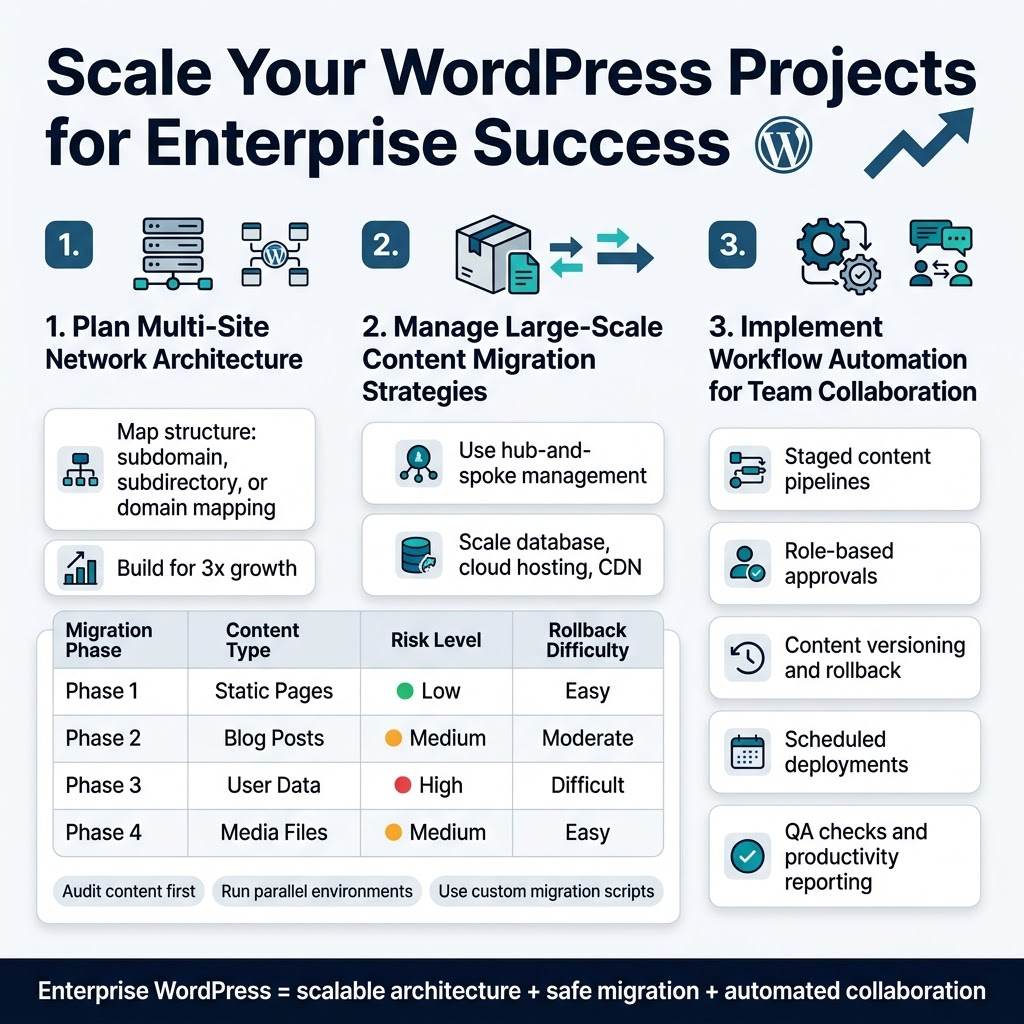
Start by mapping your organizational structure to determine whether you need a subdomain, subdirectory, or domain mapping approach. Large corporations often benefit from subdomain networks (marketing.company.com, support.company.com), while content-heavy organizations prefer subdirectory structures for better SEO consolidation.
Design your network with scalability in mind. Plan for at least 3x your current expected growth, and consider implementing a hub-and-spoke architecture where a central management site controls branding, plugins, and security policies across all network sites. This prevents the chaos that comes with managing hundreds of independent WordPress installations.
Database architecture becomes critical at enterprise scale. Implement database clustering with read/write splitting to handle the increased load. Consider table partitioning strategies that separate network metadata from individual site content, allowing for more efficient queries and maintenance operations.
Your hosting environment should support horizontal scaling from day one. Cloud-based solutions with auto-scaling capabilities work best, but you’ll need proper session management and file synchronization across multiple servers. Plan your CDN integration early, as enterprise WordPress scalability depends heavily on distributed content delivery.
Manage Large-Scale Content Migration Strategies
Moving massive amounts of content requires surgical precision and bulletproof planning. WordPress 2026’s improved import/export capabilities make enterprise migrations more manageable, but you still need rock-solid strategies to avoid data loss and downtime.
Create comprehensive content audits before starting any migration. Categorize content by type, age, engagement metrics, and business value. This helps prioritize what needs immediate migration versus what can be archived or eliminated entirely. Many enterprises discover they’re carrying 40-60% outdated content that shouldn’t make the journey.
Implement staged migration workflows that move content in manageable chunks. Start with static pages, then move to dynamic content, user data, and finally media files. This approach lets you test each phase thoroughly and rollback specific segments if issues arise.
| Migration Phase | Content Type | Risk Level | Rollback Difficulty |
|---|---|---|---|
| Phase 1 | Static Pages | Low | Easy |
| Phase 2 | Blog Posts | Medium | Moderate |
| Phase 3 | User Data | High | Difficult |
| Phase 4 | Media Files | Medium | Easy |
Develop custom migration scripts that handle your specific data relationships and formatting requirements. WordPress CLI tools can automate much of the heavy lifting, but you’ll likely need custom solutions for proprietary data structures or third-party integrations.
Always maintain parallel environments during migration. Run your old and new systems simultaneously for at least two weeks, allowing real users to test functionality while keeping the safety net of your original system. This dual-environment approach catches edge cases that automated testing might miss.
Implement Workflow Automation for Team Collaboration
Enterprise WordPress development demands sophisticated workflow automation that keeps large teams productive without stepping on each other’s toes. WordPress 2026’s enhanced collaboration features provide the foundation, but you need systematic approaches to content creation, review, and deployment processes.
Set up automated content staging pipelines that move drafts through defined approval workflows. Create role-based review systems where content automatically routes to appropriate stakeholders based on categories, tags, or custom metadata. Marketing content might require brand compliance review, while technical documentation needs subject matter expert approval.
Implement version control systems that extend beyond code to include content versioning. Git-based workflows work well for development teams, but content creators need more visual tools. Consider solutions that automatically backup content changes and provide easy rollback capabilities for non-technical users.
Create automated deployment schedules that push approved content to production during low-traffic windows. This prevents the chaos of manual publishing and ensures consistent timing across different time zones and team schedules.
Build notification systems that keep stakeholders informed without overwhelming them. Smart filtering ensures designers get alerts about theme changes, content managers see publishing schedule updates, and executives receive high-level progress reports. Slack or Microsoft Teams integrations work well for real-time collaboration.
Establish automated quality assurance checks that scan for broken links, missing images, SEO compliance, and accessibility standards before content goes live. These automated gatekeepers catch common mistakes that human reviewers might miss during busy periods.
Monitor team productivity with automated reporting that tracks content creation velocity, approval bottlenecks, and publishing success rates. This data helps identify process improvements and resource allocation needs as your enterprise WordPress projects scale up.
How to start now with clickable urls
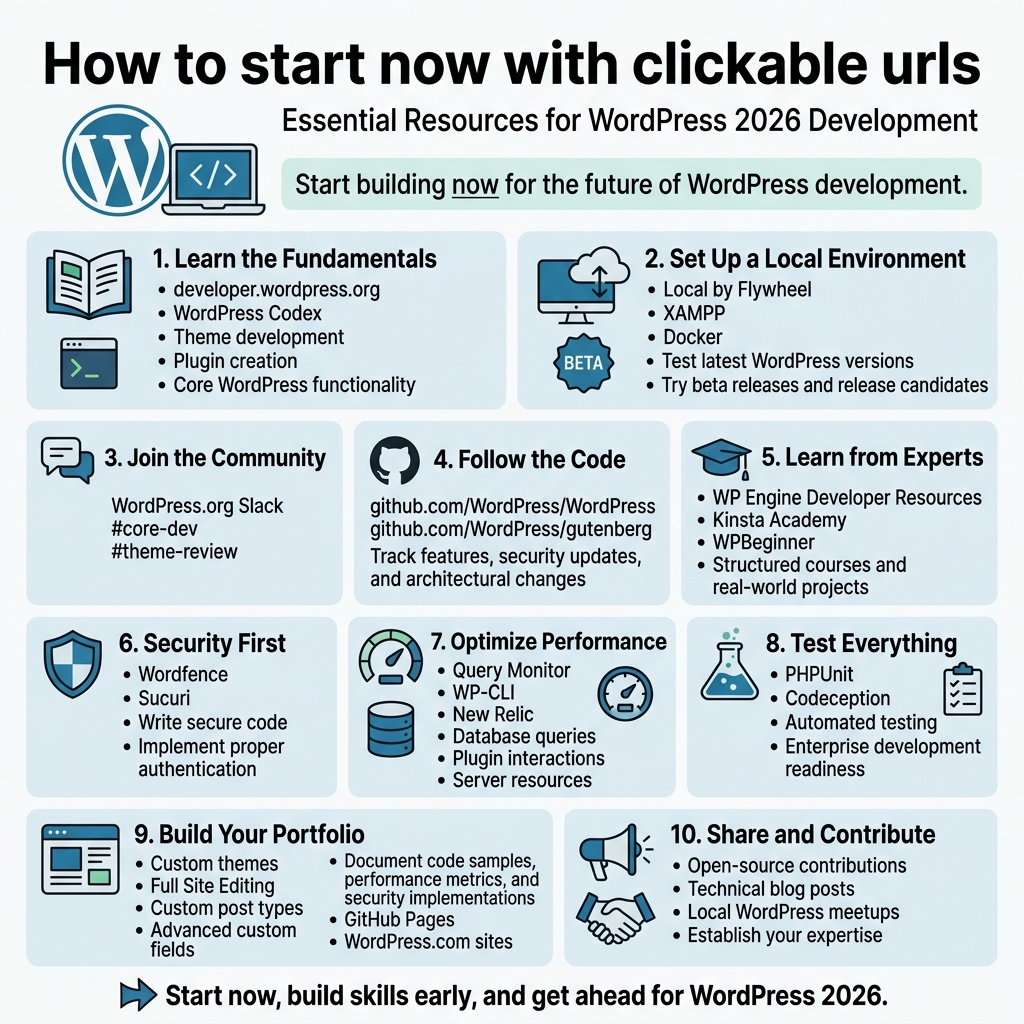
Essential Resources for WordPress 2026 Development
Getting started with professional WordPress development doesn’t require waiting until 2026 arrives. The foundational tools and knowledge you need are available right now, and building your expertise early gives you a significant advantage.
Start by exploring the official WordPress development documentation at developer.wordpress.org, where you’ll find comprehensive guides on theme development, plugin creation, and core WordPress functionality. The WordPress Codex remains your go-to reference for understanding how WordPress works under the hood.
For hands-on learning, set up a local development environment using tools like Local by Flywheel, XAMPP, or Docker. These platforms let you experiment with WordPress development without affecting live sites. Practice with the latest WordPress versions and test upcoming features through beta releases and release candidates.
Must-Have Learning Platforms and Communities
WordPress development expertise grows fastest through community engagement and structured learning. Join the WordPress.org Slack channels, particularly #core-dev and #theme-review, where active contributors share insights about upcoming changes and best practices.
GitHub repositories like WordPress/WordPress and WordPress/gutenberg provide direct access to the latest development work. Following these repositories keeps you informed about new features, security updates, and architectural changes that will shape WordPress 2026.
Premium learning platforms such as WP Engine’s Developer Resources, Kinsta Academy, and WPBeginner offer structured courses covering advanced WordPress development techniques. These resources often include real-world projects that mirror enterprise-level challenges you’ll face in professional WordPress development.
WordPress Security and Performance Tools
Professional WordPress development demands robust security and performance optimization from day one. Install security plugins like Wordfence or Sucuri to understand how WordPress vulnerabilities work and how to prevent them. Learning about security early helps you write more secure code and implement proper authentication protocols.
Performance optimization tools like Query Monitor, WP-CLI, and New Relic provide insights into how WordPress handles database queries, plugin interactions, and server resources. These tools become essential when scaling WordPress projects for enterprise use.
Testing frameworks such as PHPUnit and Codeception help you write better code through automated testing. Enterprise WordPress development relies heavily on testing methodologies, making these skills valuable for professional growth.
Building Your WordPress Development Portfolio
Create a professional portfolio showcasing your WordPress 2026 preparation by building projects that demonstrate modern development practices. Develop custom themes using the latest WordPress features like Full Site Editing, custom post types, and advanced custom fields.
Document your projects thoroughly, including code samples, performance metrics, and security implementations. GitHub Pages or WordPress.com sites work perfectly for showcasing your development journey and attracting potential clients or employers.
The WordPress community values contributors who share knowledge and code. Consider contributing to open-source WordPress projects, writing technical blog posts, or speaking at local WordPress meetups to establish yourself as a knowledgeable developer in the ecosystem.
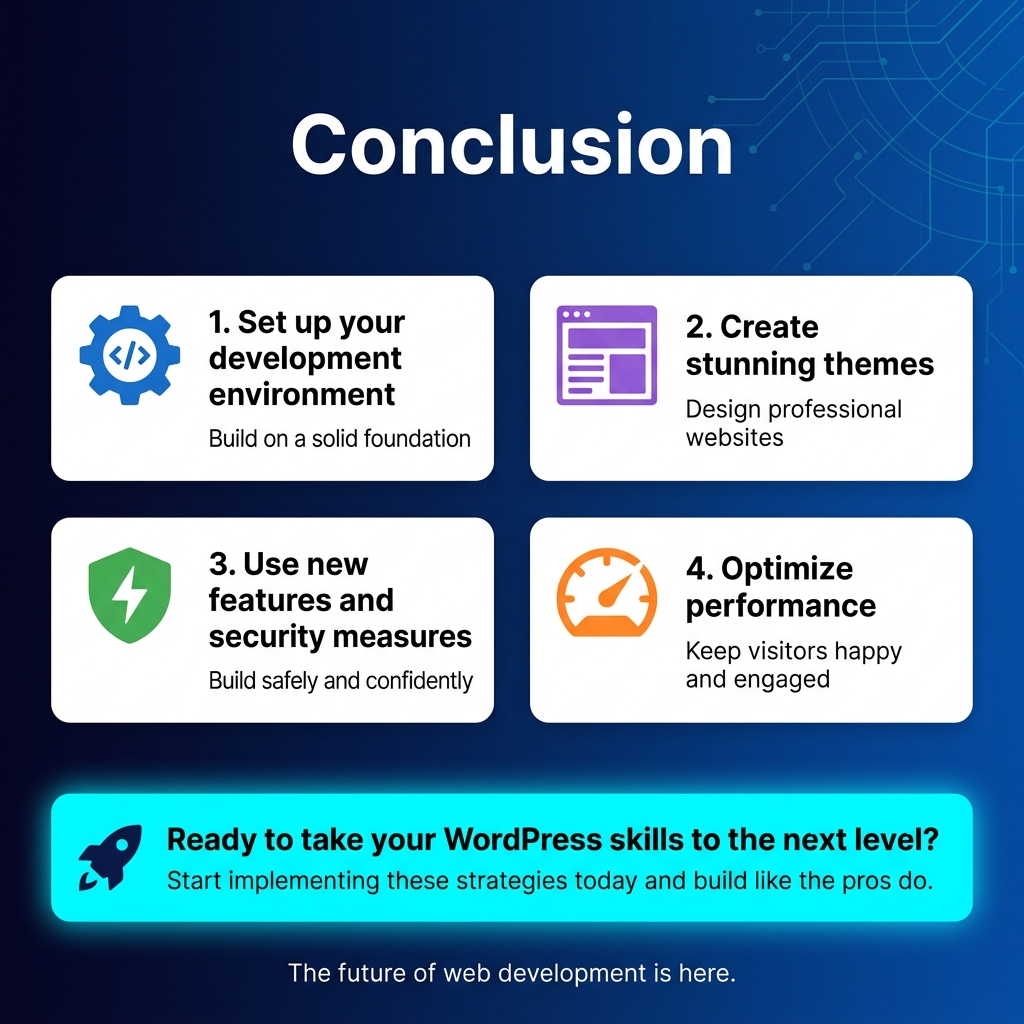
WordPress 2026 brings game-changing tools that can transform how you build websites. From setting up your development environment to creating stunning themes, every step matters in crafting professional sites. The new features and security measures give you the power to build something truly remarkable, while performance optimization keeps your visitors happy and engaged.
Ready to take your WordPress skills to the next level? Start implementing these strategies today and watch your projects evolve from basic websites to enterprise-grade solutions. The future of web development is here, and with this playbook in hand, you’re equipped to build like the pros do.