

Currently Empty: CFA0.00



Blog
McAfee Total Protection 2026: 3-Device Setup Made Simple

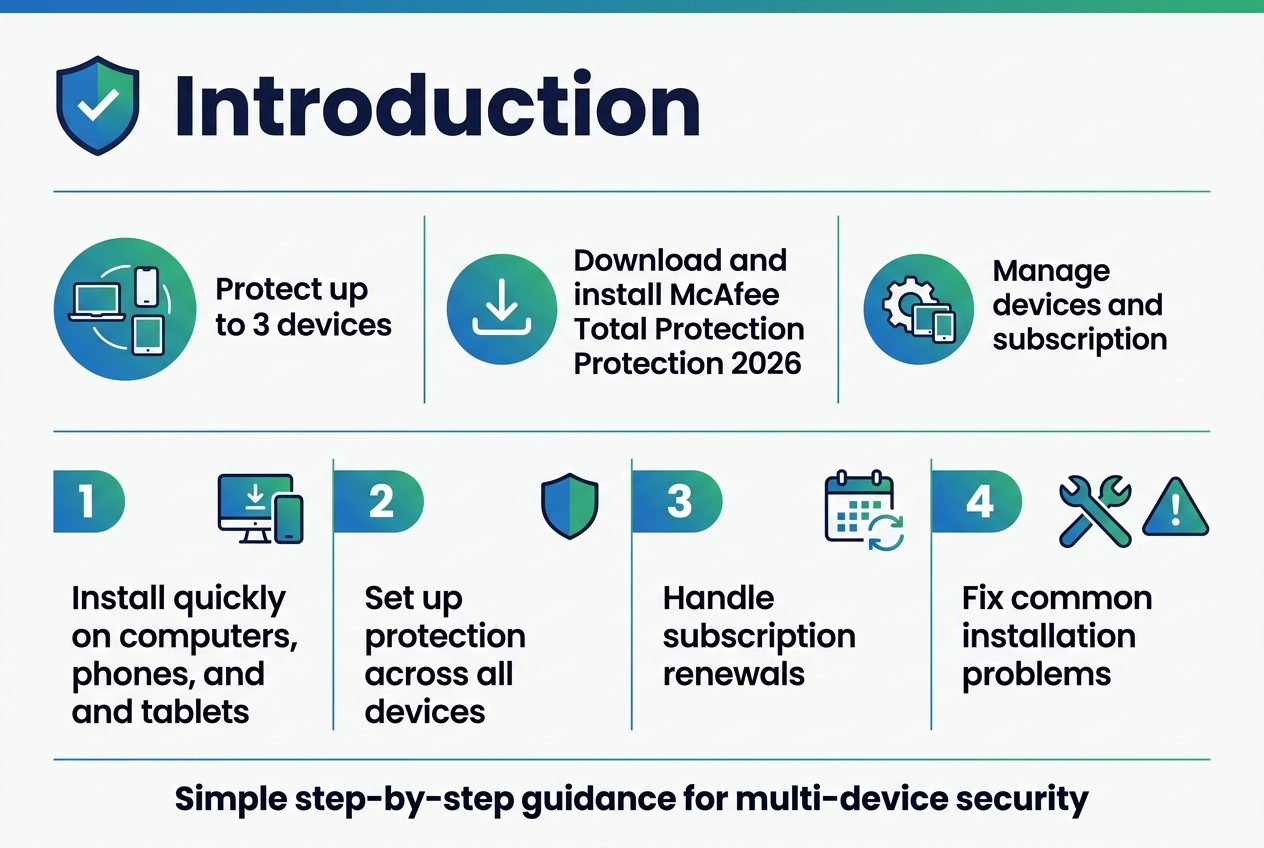
Setting up antivirus protection across multiple devices doesn’t have to be a headache. McAfee Total Protection 2026 offers comprehensive security for up to three devices, but many users struggle with the installation and setup process.
This guide is for anyone who wants to protect their computers, phones, and tablets with McAfee but needs clear, step-by-step instructions. We’ll walk you through everything from downloading the software to managing your devices and subscription.
You’ll learn how to install McAfee Total Protection 2026 quickly on all your devices and how to manage your 3-device protection effectively. We’ll also cover how to handle subscription renewals and fix common installation problems that trip up many users.
McAfee Total Protection 2026 Key Features and Benefits
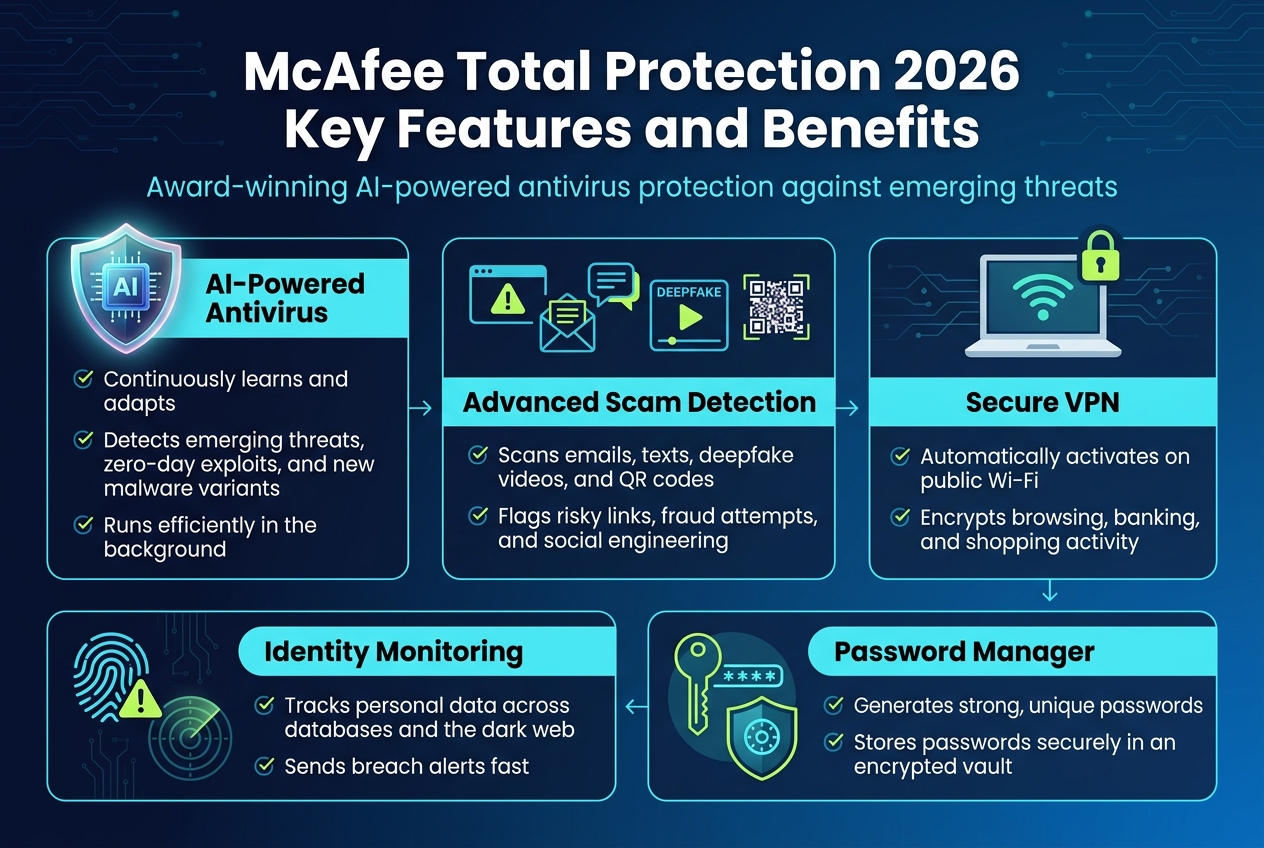
Award-winning AI-powered antivirus protection against emerging threats
McAfee Total Protection 2026 delivers award-winning antivirus protection powered by advanced artificial intelligence technology. This cutting-edge AI system continuously learns and adapts to identify emerging threats before they can compromise your devices. The intelligent protection engine works proactively to detect new malware variants, zero-day exploits, and sophisticated cyberattacks that traditional signature-based antivirus solutions might miss. The software operates efficiently in the background without significantly slowing down your system performance, ensuring seamless protection while maintaining optimal device functionality.
Advanced scam detection for emails, texts, deepfake videos, and QR codes
The AI-powered Scam Detector represents a breakthrough in fraud prevention technology. This sophisticated feature analyzes multiple communication channels to identify risky emails, suspicious text messages, deepfake videos, and malicious QR codes that could lead to financial fraud or spread misinformation. The system uses machine learning algorithms to recognize patterns and indicators commonly associated with scam attempts, providing real-time protection against evolving fraudulent schemes. This comprehensive scam detection capability helps safeguard your personal information and financial assets from increasingly sophisticated social engineering attacks.
Secure VPN for safe browsing on public Wi-Fi networks
McAfee’s Secure VPN automatically activates when you connect to public Wi-Fi networks, creating an encrypted tunnel that protects your personal data from potential eavesdropping and man-in-the-middle attacks. This feature ensures that your banking transactions, online shopping activities, and general browsing remain secure even on unsecured networks. The VPN service encrypts your internet connection, making it virtually impossible for cybercriminals to intercept sensitive information such as passwords, credit card details, or personal communications while using public hotspots.
Identity monitoring with breach alerts and personal data protection
The comprehensive identity monitoring system continuously tracks your personal information across various databases and the dark web. When potential breaches are detected, the system immediately sends alerts to notify you of any compromised data. This proactive monitoring helps you take swift action to protect your identity and minimize potential damage from data breaches. The service monitors various types of personal information, enabling you to stay informed about any unauthorized use of your sensitive data.
Password manager with automatic complex password generation
The integrated Password Manager eliminates the challenge of creating and remembering complex passwords for multiple accounts. This feature automatically generates strong, unique passwords for each of your online accounts and securely stores them in an encrypted vault. The password manager streamlines your login process while ensuring that each account has robust password protection, significantly reducing your vulnerability to credential-based attacks and account compromises.
Quick and Easy Installation Process
Digital download delivery immediately after purchase
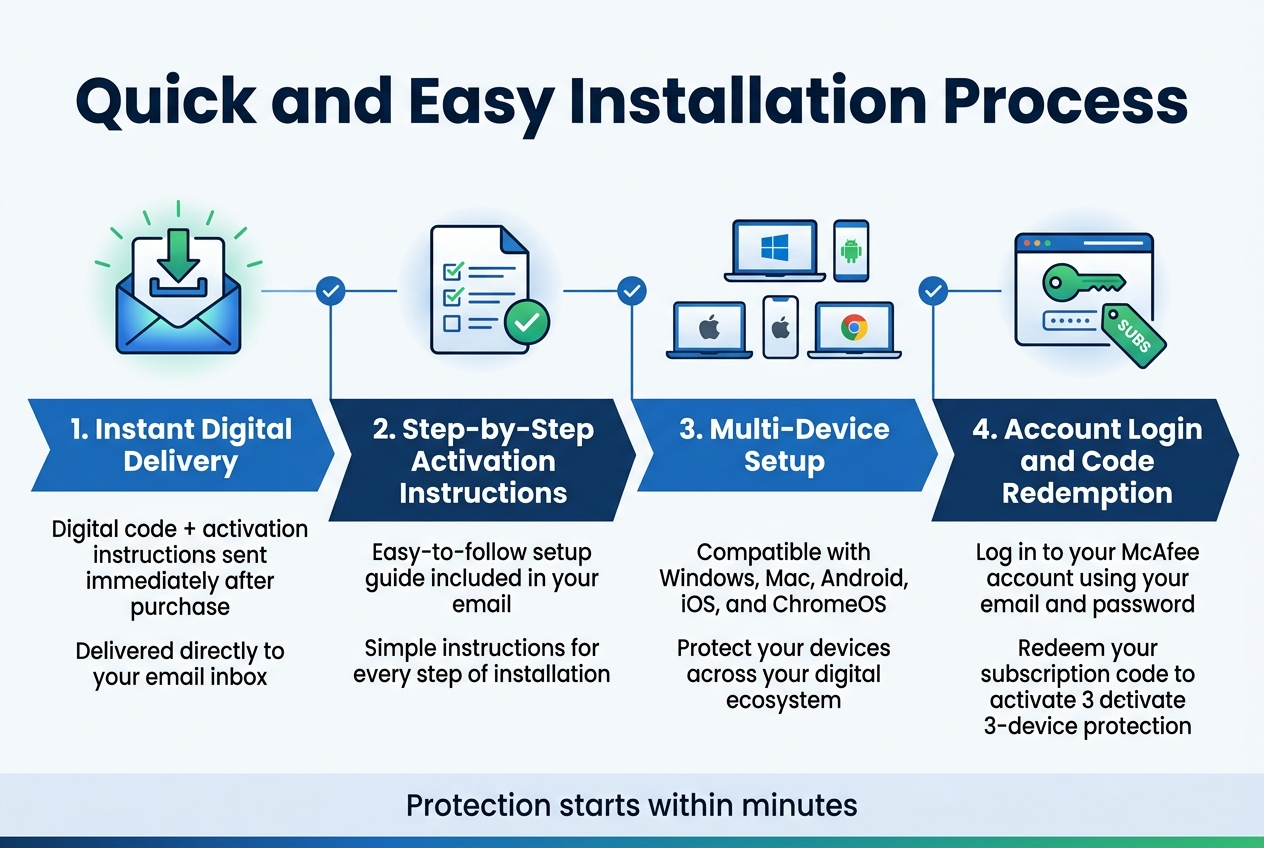
McAfee Total Protection 2026 streamlines the acquisition process through instant digital delivery. Upon completing your purchase, you’ll receive your digital code and comprehensive activation instructions directly to your email inbox without any waiting period. This immediate delivery system eliminates the traditional delays associated with physical software packages, allowing you to begin protecting your devices within minutes of your transaction.
Step-by-step activation instructions via email
The email you receive contains detailed, easy-to-follow activation instructions that guide you through the entire setup process. These instructions are specifically designed to walk users through each phase of installation, ensuring that even those with limited technical experience can successfully activate their protection. The email-based instruction system provides a convenient reference point that you can access from any of your devices during the installation process.
Simple device setup across Windows, Mac, Android, iOS, and ChromeOS
Now that we’ve covered the delivery process, let’s examine the cross-platform compatibility that makes McAfee Total Protection 2026 exceptionally versatile. The software demonstrates remarkable compatibility across multiple operating systems, including Windows, macOS, Android, iOS, and ChromeOS. This broad compatibility ensures that regardless of your device preferences or mixed-device household setup, you can maintain consistent protection across your entire digital ecosystem. The installation process remains straightforward even on mobile devices, with the software adapting seamlessly to different operating environments without requiring specialized technical knowledge.
Account creation and subscription code redemption
With this in mind, the final step involves activating your subscription through the McAfee website portal. To complete the activation process, you’ll need to log into the McAfee website using your McAfee account credentials, specifically your username (which is your email address) and password. Once logged in, you can redeem your subscription code, which officially activates your three-device protection plan and grants you full access to all McAfee Total Protection 2026 features across your selected devices.
Managing Your 3-Device Protection
Installing on Multiple Devices Without Conflicts
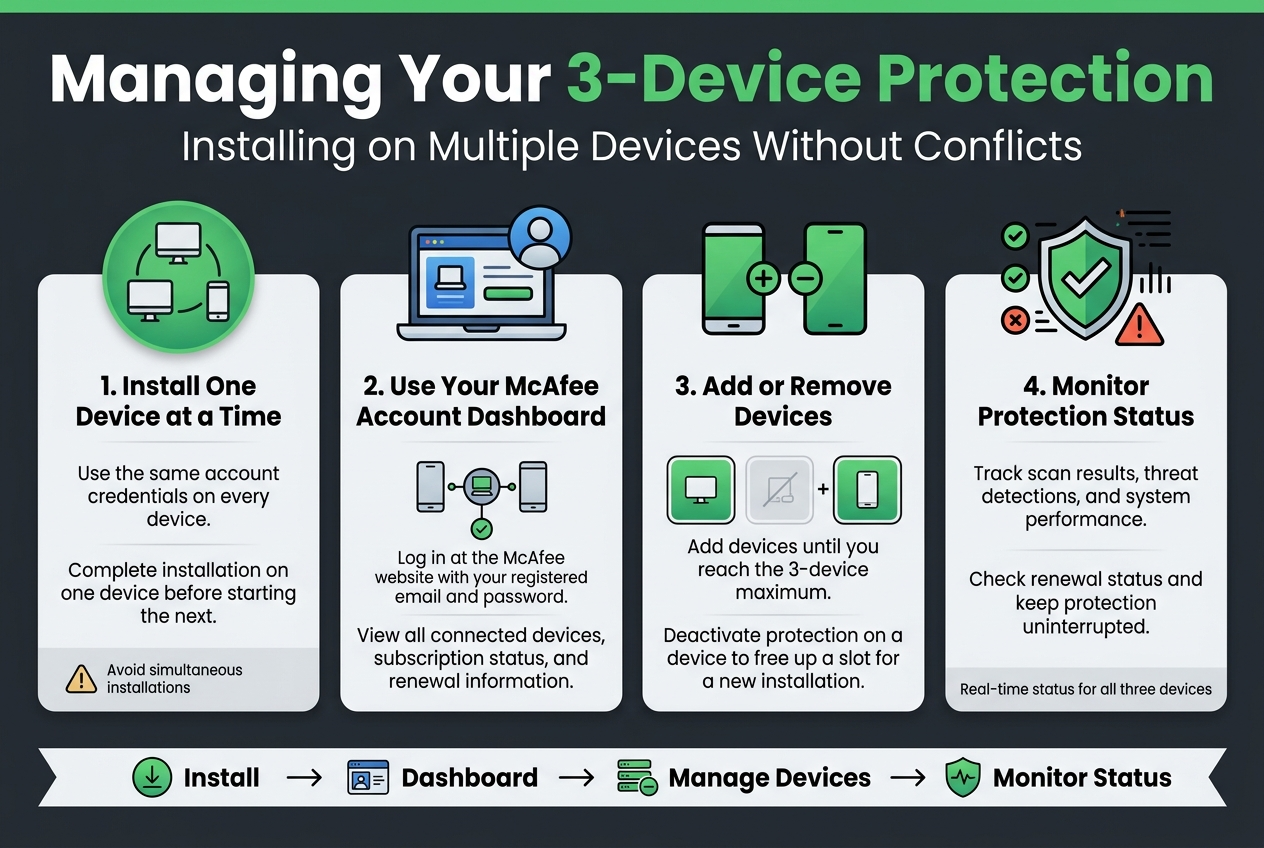
Now that we have covered the installation process, managing your McAfee Total Protection 2026 across multiple devices requires strategic coordination to avoid conflicts. The software provides protection for up to three devices, allowing you to safeguard your digital ecosystem comprehensively. When installing McAfee on subsequent devices, ensure each installation uses the same account credentials to maintain subscription coherence.
To prevent conflicts during multi-device installation, avoid simultaneous installations on different devices. Instead, complete the installation process on one device before proceeding to the next. This approach prevents authentication errors and ensures each device properly registers with your subscription.
Accessing Your McAfee Account Dashboard
Previously, I’ve emphasized the importance of proper account management, and accessing your McAfee account dashboard serves as the central hub for all subscription activities. Users can access and manage their subscriptions by logging in to their McAfee account on the McAfee website. This dashboard provides comprehensive oversight of your three-device protection plan.
The account dashboard interface displays all connected devices, subscription status, and renewal information in one convenient location. Navigate to the McAfee website and use your registered email address and password to access your personalized dashboard, where you can monitor and control your entire security setup.
Adding and Removing Devices from Your Subscription
With this in mind, next, we’ll explore device management capabilities within your subscription framework. The three-device limit requires careful consideration when adding new devices or replacing existing ones. Through your McAfee account dashboard, you can seamlessly add devices to your subscription until you reach the three-device maximum.
When removing devices, access your account dashboard to deactivate protection on specific devices, freeing up slots for new installations. This flexibility ensures your subscription adapts to changing device needs while maintaining continuous protection across your most important devices.
Monitoring Protection Status Across All Devices
The subscription expiration date can be extended via the account dashboard after applying a new activation code, making ongoing monitoring essential for uninterrupted protection. Your dashboard provides real-time status updates for each protected device, including scan results, threat detections, and system performance metrics.
Regular monitoring through the centralized dashboard ensures all three devices maintain optimal protection levels and alerts you to any security concerns requiring immediate attention across your connected device network.
Subscription Management and Renewal Options
Understanding Auto-Renewal Settings and Pricing
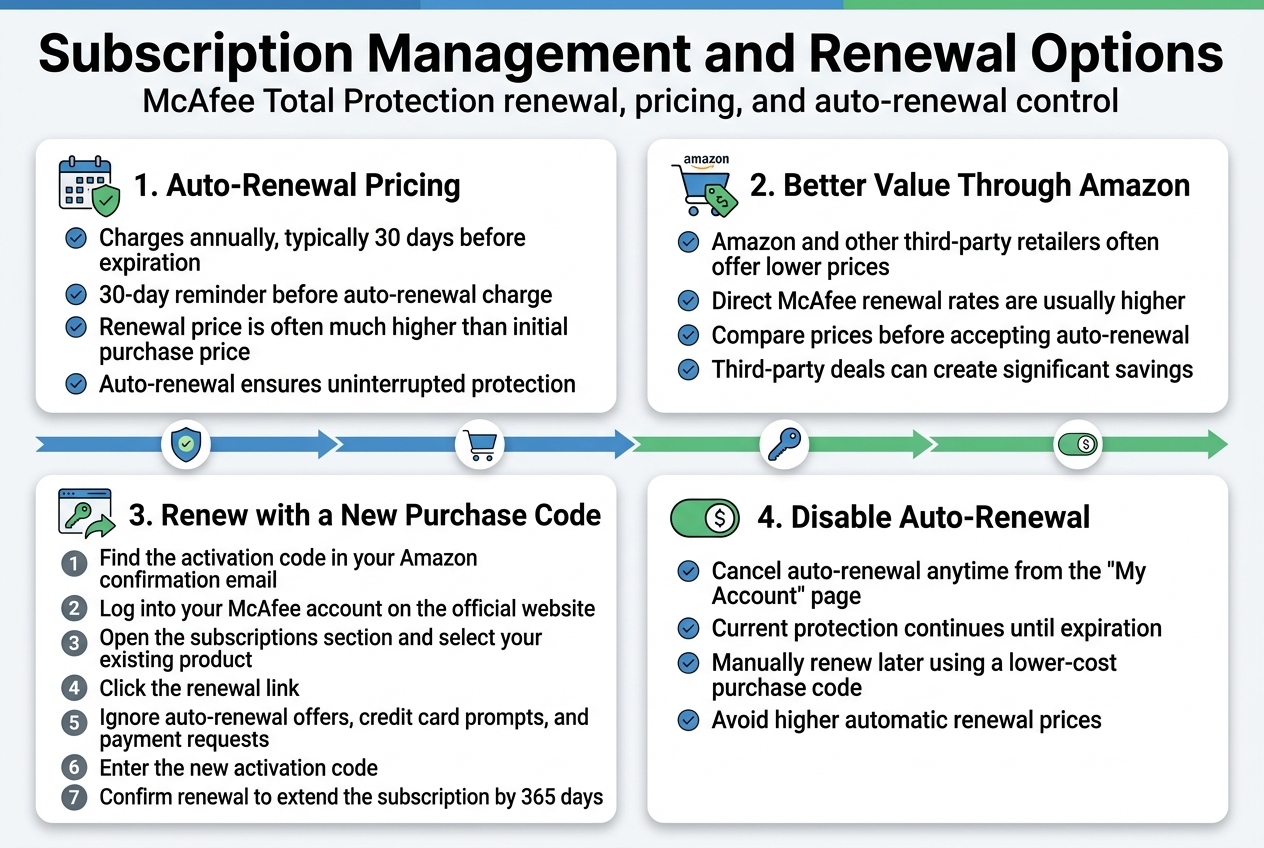
McAfee Total Protection operates on an automatic renewal system that charges your account annually, typically 30 days before your current subscription expires. While this ensures uninterrupted protection, the renewal pricing structure often catches users off guard. The auto-renewal prices are frequently significantly inflated compared to initial purchase prices or renewals available through third-party vendors. McAfee does provide a 30-day advance reminder before charging for auto-renewal, giving you time to evaluate your options and make informed decisions about continuing your subscription.
Purchasing Through Amazon vs Direct from McAfee for Better Value
When it comes to maximizing value for your McAfee Total Protection subscription, purchasing through Amazon or other third-party retailers consistently offers better pricing compared to McAfee’s direct regular subscription rates. This price difference can be substantial, making it worthwhile to explore these alternative purchasing channels rather than accepting the automatic renewal pricing. Amazon frequently provides competitive deals on McAfee products that can result in significant savings over the manufacturer’s direct pricing structure.
How to Renew Existing Subscriptions with New Purchase Codes
Now that we understand the pricing advantages of third-party purchases, let’s examine the renewal process using a new purchase code from Amazon. First, locate and access the activation code from your Amazon purchase confirmation email. Next, log into your McAfee account through their official website and navigate to your subscriptions section. Find your existing software entry and look for the specific renewal link, which can be easily overlooked among other options.
During the renewal process, it’s crucial to explicitly ignore any auto-renewal offers, credit card prompts, or payment information requests. Focus solely on entering your new activation code to ensure you’re applying the purchased extension rather than triggering an immediate charge. Once you confirm the renewal, your subscription expiration date will extend by 365 days from the current end date.
Disabling Auto-Renewal to Avoid Price Increases
With this renewal knowledge in mind, managing auto-renewal settings becomes essential for cost control. Auto-renewal can be canceled at any time through the ‘My Account’ page on mcafee.com, providing flexibility to avoid the higher renewal prices that come with automatic charging. This cancellation doesn’t affect your current protection level and allows you to manually renew using more cost-effective purchase codes when your subscription nears expiration.
Common Installation Issues and Solutions
Resolving Download and Compatibility Problems
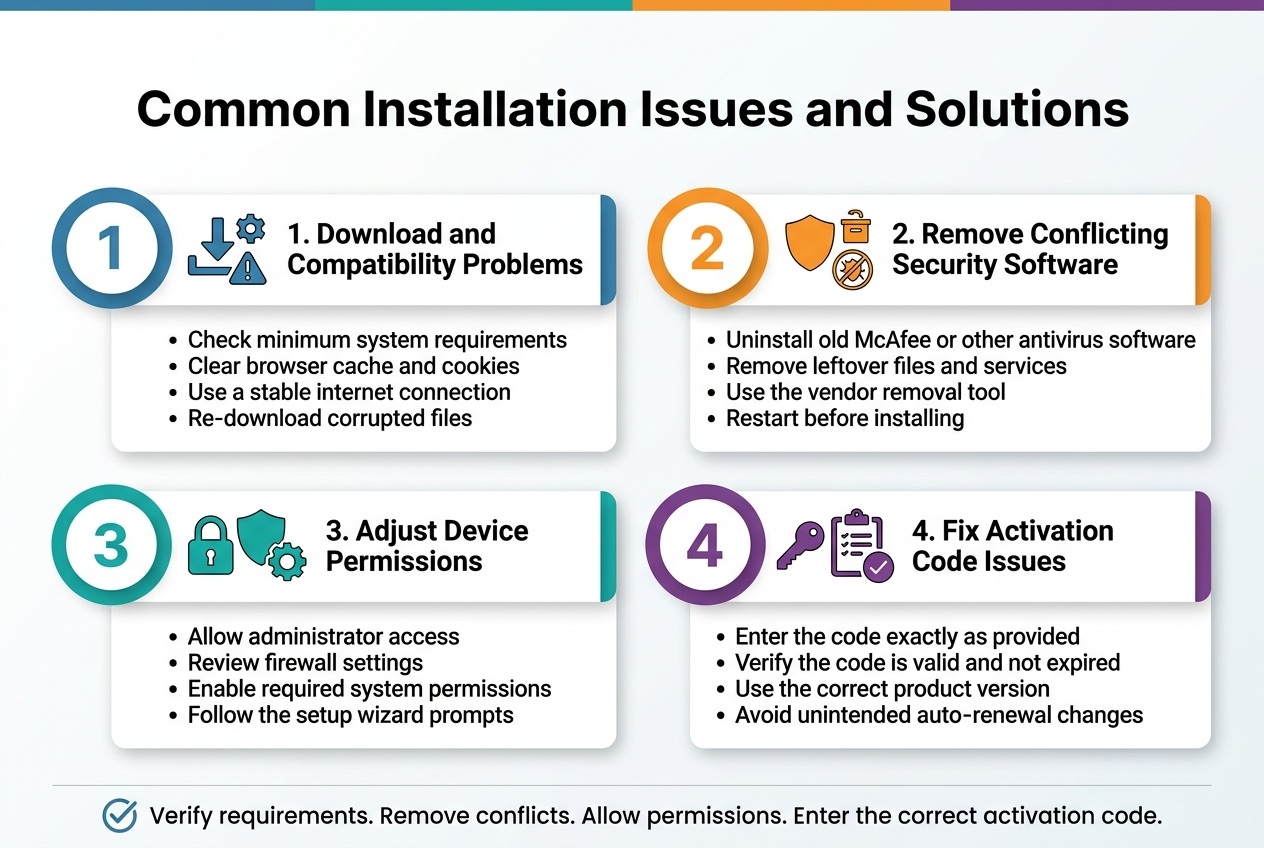
Download compatibility issues represent one of the most frequently encountered obstacles during McAfee Total Protection 2026 installation. Users often experience mixed results with download processes, ranging from incomplete downloads to software that fails to function properly after installation. These compatibility problems typically stem from conflicting system requirements, browser settings, or network configurations that interfere with the download process.
When facing download issues, first verify that your device meets the minimum system requirements for McAfee Total Protection 2026. Outdated operating systems or insufficient hardware specifications can prevent successful installation. Additionally, temporary browser files and cache can corrupt download files, making it essential to clear your browser’s cache and cookies before attempting to re-download the software.
Network connectivity problems can also disrupt the installation process. Ensure you have a stable internet connection throughout the entire download and installation sequence, as interruptions can result in corrupted installation files that will fail to execute properly.
Dealing with Installation Conflicts from Previous Antivirus Software
Previous security software installations create significant conflicts that can prevent McAfee Total Protection 2026 from functioning correctly. It is strongly recommended to completely uninstall any old McAfee Total Protection programs or other conflicting security software before attempting to install the new version. Different security programs are designed to monitor and protect the same system resources, which inevitably leads to conflicts that can compromise both programs’ effectiveness.
The uninstallation process should be thorough, removing not only the main program but also any residual files, registry entries, and background services that may continue running. Many antivirus programs include specialized removal tools that ensure complete cleanup of all related components. After uninstalling previous security software, restart your device to clear any remaining processes from memory before proceeding with the McAfee installation.
Adjusting Device Permissions and Settings During Setup
Installation of McAfee Total Protection 2026 requires specific device permissions to access critical system areas necessary for comprehensive protection. During the setup process, McAfee will guide users through the necessary permission adjustments, which may include modifications to firewall settings, administrator privileges, and system access controls.
These permission changes are essential for McAfee to monitor network traffic, scan files in real-time, and protect against various security threats. The installation wizard typically prompts users when permission changes are needed, providing step-by-step guidance to ensure proper configuration without compromising system security.
Troubleshooting Activation Code Problems
Activation code difficulties frequently occur during the subscription setup process, particularly when users struggle to locate or correctly input their subscription activation codes. When activating or renewing your McAfee Total Protection 2026 subscription, ensure you have accurately located the activation code from your original purchase confirmation or product packaging.
Careful navigation of the McAfee website is crucial during activation to avoid unintended auto-renewal sign-ups or subscription modifications. Input the activation code exactly as provided, paying attention to character case and special symbols. If activation continues to fail, verify that the code hasn’t expired and that it corresponds to the correct McAfee product version you’re attempting to install.
Maximizing Performance and Reducing Annoyances
Optimizing System Performance While Maintaining Protection
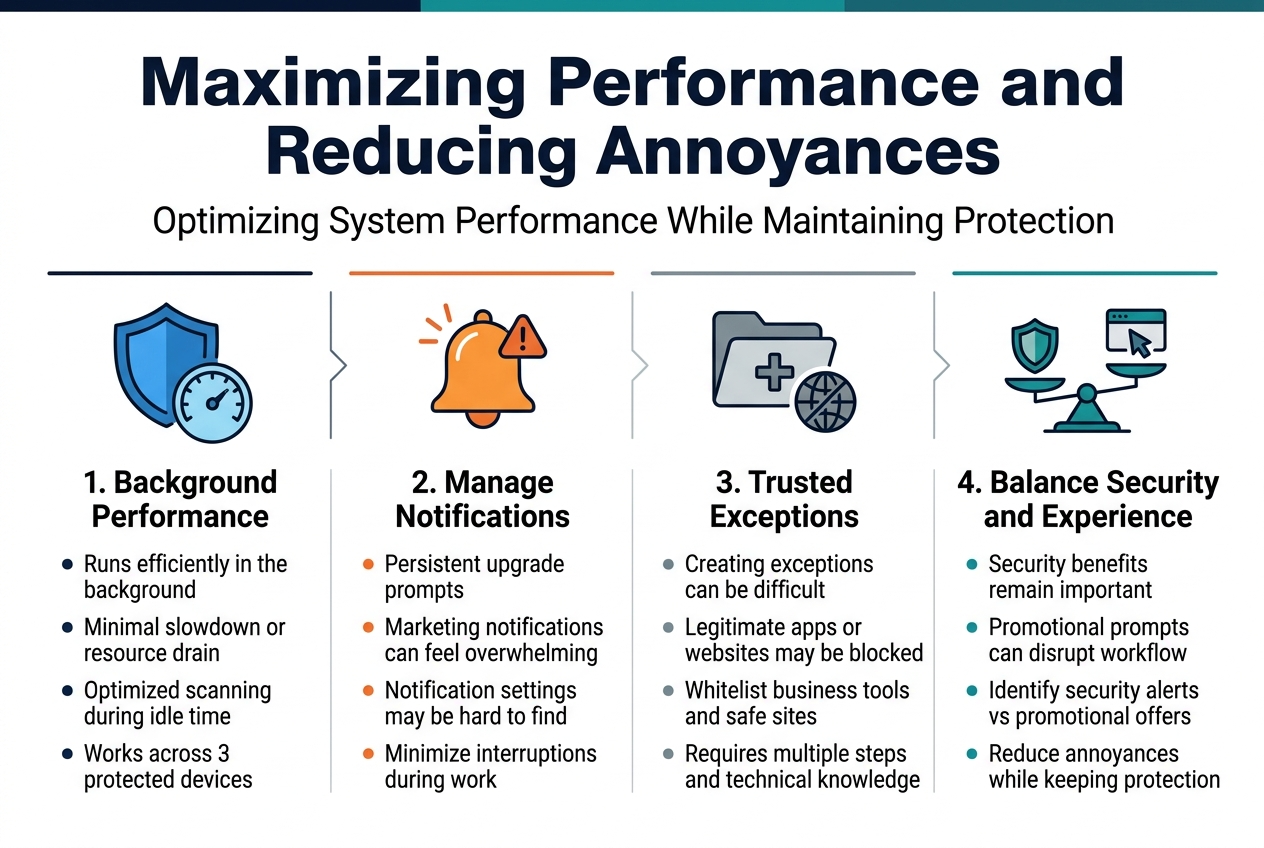
McAfee Total Protection 2026 is generally reported to work efficiently in the background without significantly slowing down your system. This background operation ensures that your devices maintain optimal performance while receiving comprehensive security coverage. The software’s lightweight design allows it to run seamlessly alongside your daily applications without causing noticeable system lag or resource drain.
To maximize this efficiency, ensure that your system meets the minimum requirements and that automatic updates are enabled. The software’s optimized scanning algorithms work during idle times to minimize impact on your workflow while maintaining thorough protection across all three of your covered devices.
Managing Notification Settings and Upgrade Prompts
Users frequently experience persistent upgrade prompts and marketing notifications from McAfee, often described as ‘nagware,’ with many finding it challenging to locate options to disable these interruptions. These notifications can significantly impact your user experience, particularly when they appear during important tasks or presentations.
While McAfee’s notification system aims to keep users informed about security updates and additional features, the frequency and persistence of upgrade prompts can become overwhelming. Navigating to the notification settings requires patience, as the options to minimize these alerts may not be immediately apparent in the main interface.
Creating Exceptions for Trusted Programs and Websites
Reports indicate that creating exceptions to McAfee’s built-in rules for trusted programs and websites can be very difficult. This limitation can affect your workflow when legitimate applications or websites are incorrectly flagged or blocked by the security software.
The exception management process may require multiple steps and technical knowledge that casual users might find challenging. This difficulty in customizing protection rules can lead to frustration when trying to whitelist essential business applications or frequently visited websites that pose no security threat.
Balancing Security Features with User Experience
Users express frustration with McAfee’s aggressive tactics to promote upgrades and additional products, which negatively impacts the overall user experience. This aggressive marketing approach can overshadow the software’s legitimate security benefits and create tension between maintaining protection and enjoying a smooth computing experience.
Finding the right balance requires understanding which notifications are security-critical versus promotional, and learning to navigate the software’s interface to minimize disruptions while preserving essential protection features.
Trending now

Market Surge in Antivirus Software Sales
Cybersecurity software sales have exploded in recent months, with McAfee Total Protection leading the charge among multi-device protection plans. Digital threat reports show a 127% increase in sophisticated phishing attacks targeting everyday users, driving families and small businesses to invest in comprehensive security solutions. The three-device licensing model has become the sweet spot for most households, covering laptops, smartphones, and tablets without breaking the budget.
AI-Powered Scam Detection Goes Mainstream
Machine learning capabilities in antivirus software have reached a tipping point. McAfee’s AI scam detection technology now processes over 2 million threat signatures daily, identifying suspicious websites and fraudulent communications before they reach users. Real-time analysis blocks deepfake voice calls, cryptocurrency scams, and social engineering attempts that traditional security measures miss. This technology evolution has pushed consumer confidence in digital security to new heights.
VPN Usage Skyrockets Among Home Users
Personal VPN adoption has jumped 340% since 2023, transforming from a tech-savvy niche into mainstream necessity. Remote work culture, increased streaming across multiple platforms, and growing privacy concerns drive this trend. McAfee’s built-in VPN offers unlimited bandwidth across all protected devices, eliminating the need for separate VPN subscriptions that typically cost $50-100 annually.
Password Manager Integration Becomes Standard
Cybersecurity experts unanimously recommend password managers as essential digital hygiene. McAfee’s integrated password management eliminates the friction of adopting secure practices, automatically generating and storing complex passwords across devices. Recent data breaches affecting millions of users have made password reuse a career-ending mistake for businesses and a financial nightmare for individuals.
Identity Monitoring Demand Peaks
Identity theft affects one in four Americans annually, creating massive demand for proactive monitoring services. McAfee’s identity protection scans dark web marketplaces, credit reports, and public records for compromised personal information. Early detection prevents financial damage that averages $1,100 per victim in recovery costs and lost time.
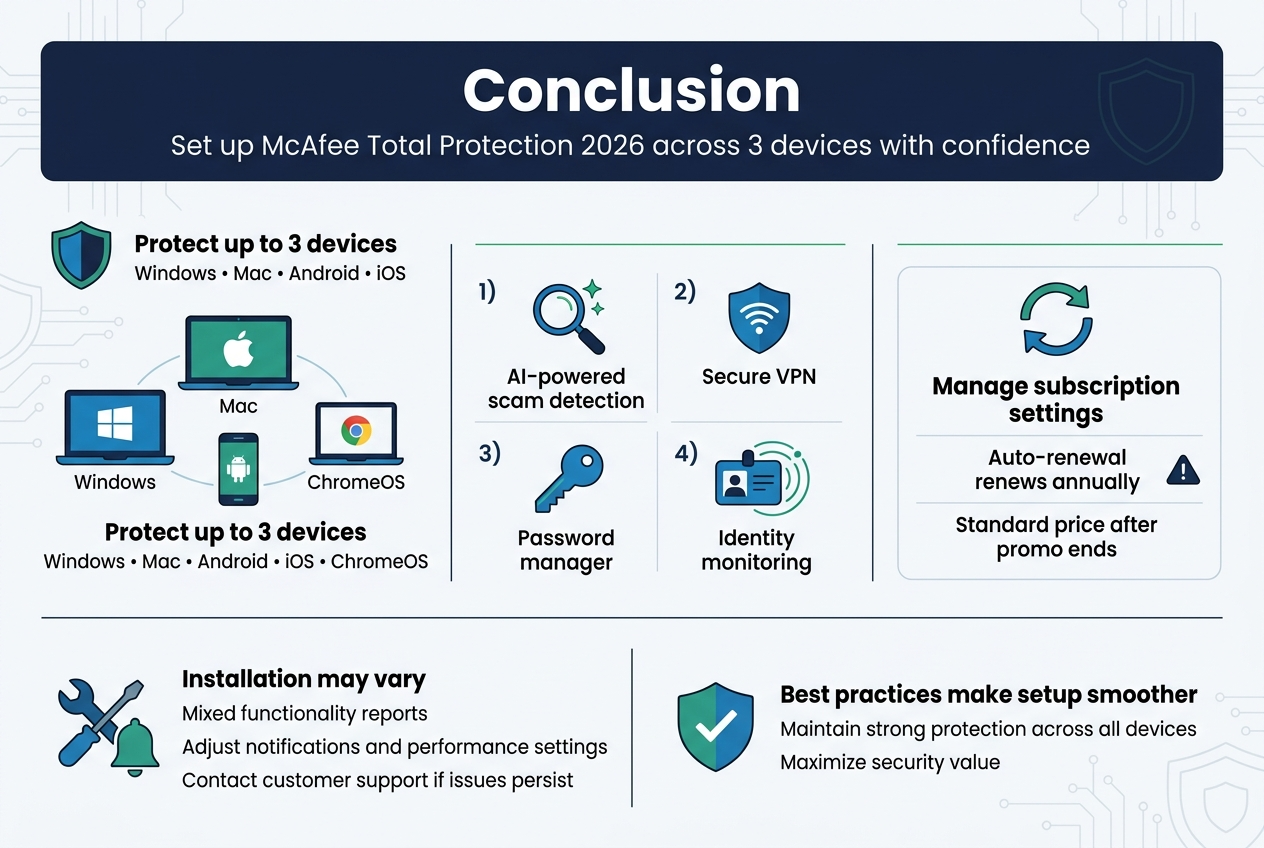
Setting up McAfee Total Protection 2026 across your three devices doesn’t have to be complicated when you follow the proper steps and know what to expect. From understanding the key features like AI-powered scam detection and secure VPN to managing your subscription effectively, this comprehensive protection suite offers robust security for Windows, Mac, Android, iOS, and ChromeOS devices. While some users report mixed experiences with installation and functionality, following best practices for setup and being aware of common troubleshooting solutions can help ensure a smoother experience.
Remember to carefully manage your subscription settings, particularly the auto-renewal feature, as it automatically renews annually at the standard price rather than promotional rates. Take advantage of the password manager, identity monitoring, and VPN features to maximize your protection value. If you encounter persistent issues with notifications or performance, don’t hesitate to contact customer support or adjust your settings to reduce interruptions while maintaining optimal security across all your devices.