

Currently Empty: CFA0.00



Blog
How to Choose the Best USB-C Docking Station in 2026
How to Choose the Best USB-C Docking Station in 2026
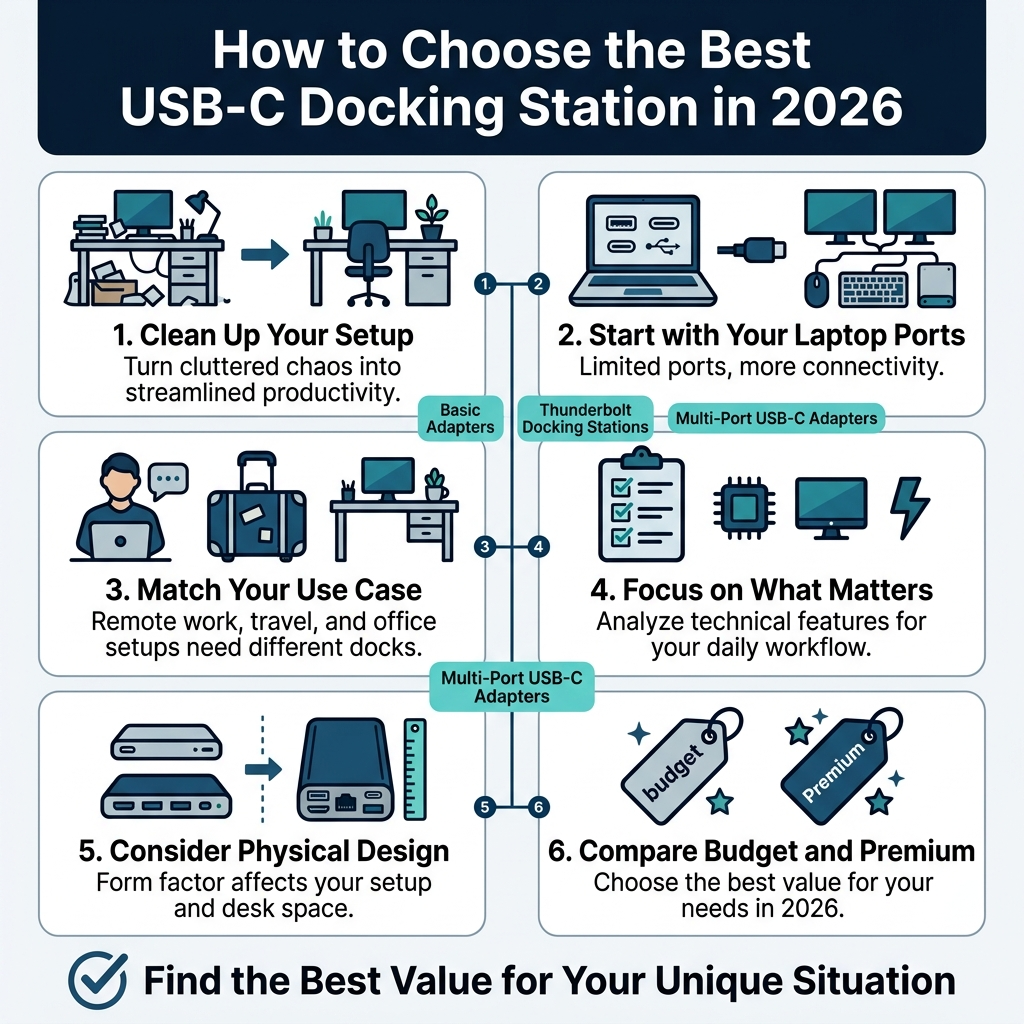
Finding the right USB-C docking station can transform your workspace setup from cluttered chaos to streamlined productivity. This comprehensive USB-C hub buying guide helps remote workers, digital nomads, and office professionals pick the perfect dock for their needs and budget.
We’ll walk you through understanding your specific connectivity needs and analyzing the technical features that actually matter for your daily workflow. You’ll also discover how physical design impacts your setup and get honest recommendations for both budget USB-C docking stations and premium multi-port USB-C adapters.
Your laptop probably has limited ports, but the right USB-C dock opens up a world of connectivity options. From basic adapters to premium Thunderbolt docking stations, the market offers solutions for every workspace and wallet.
By the end, you’ll know exactly which USB-C dock delivers the best value for your unique situation in 2026.
Best USB-C Docking Station in 2026: Understand Your Connectivity Requirements
Best USB-C Docking Station in 2026: Assess Your Device Compatibility Needs
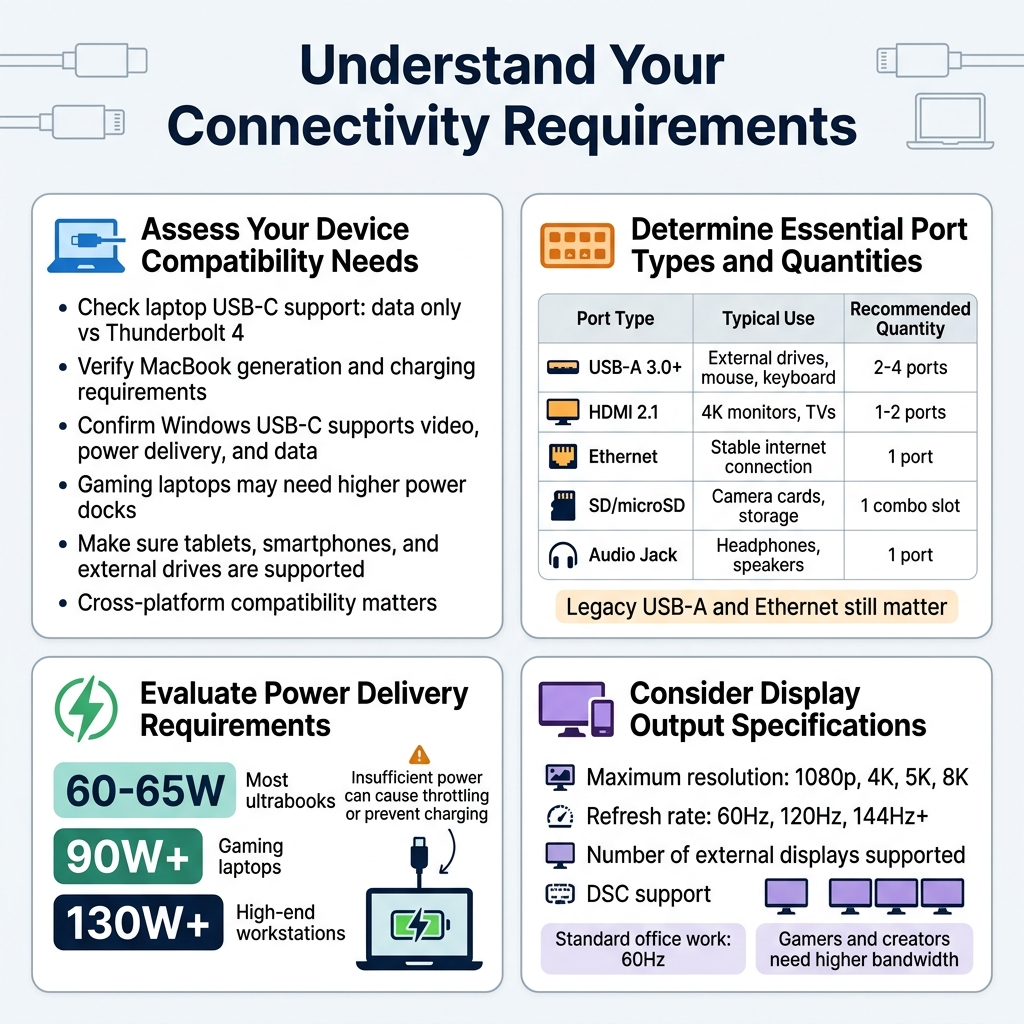
Before diving into the world of USB-C docking stations, you need to know exactly what devices you’ll be connecting. Start by checking your laptop’s specifications – some older laptops have USB-C ports that only support basic data transfer, while newer models offer full Thunderbolt 4 capabilities. This makes a huge difference in what docking station will actually work with your setup.
MacBook users should verify which generation they own, as charging requirements and port capabilities vary significantly between models. Windows laptop owners need to check if their USB-C ports support video output, power delivery, and data transfer simultaneously. Gaming laptops often have different power requirements that standard docks can’t handle.
Don’t forget about your other devices. If you regularly connect tablets, smartphones, or external hard drives, make sure your chosen USB-C dock can handle multiple device types without conflicts. Some docks work better with specific operating systems, so cross-platform compatibility becomes crucial if you switch between devices regularly.
Determine Essential Port Types and Quantities for Best USB-C Docking Station in 2026
Count how many devices you typically connect at once. Most people underestimate their actual needs until they start working from home or setting up a proper desktop workspace. A basic multi-port USB-C adapter might seem sufficient, but you’ll quickly realize you need more connections.
| Port Type | Typical Use | Recommended Quantity |
|---|---|---|
| USB-A 3.0+ | External drives, mouse, keyboard | 2-4 ports |
| HDMI 2.1 | 4K monitors, TVs | 1-2 ports |
| Ethernet | Stable internet connection | 1 port |
| SD/microSD | Camera cards, storage | 1 combo slot |
| Audio Jack | Headphones, speakers | 1 port |
Legacy ports still matter. Even in 2026, many peripherals use USB-A connections. Your wireless mouse receiver, external keyboard, or favorite flash drive probably won’t work with USB-C directly. Quality docks include multiple USB-A ports specifically for this reason.
Ethernet ports have become essential again as remote work demands stable internet connections. Wi-Fi can be unreliable during important video calls, making a wired connection non-negotiable for many professionals.
Evaluate Power Delivery Requirements
Power delivery through your USB-C docking station can eliminate cable clutter, but only if you choose the right wattage. Check your laptop’s original charger – that number tells you the minimum power delivery you need from your dock.
Most ultrabooks work fine with 60-65W power delivery, while gaming laptops often require 90W or more. Some high-end workstations need 130W+ charging, which only premium Thunderbolt docks can provide. Buying a dock with insufficient power means you’ll still need to plug in your original charger.
Power delivery affects more than just charging speed. Insufficient power can cause your laptop to throttle performance or fail to charge while under heavy use. This becomes especially problematic during long work sessions when your laptop runs hot and draws maximum power.
Consider Display Output Specifications
Your monitor setup drives many docking station decisions. Single 4K monitor users have relatively simple requirements, but dual or triple monitor setups need careful planning. Not all USB-C hubs support multiple high-resolution displays simultaneously.
Check these display specifications:
- Maximum resolution supported (1080p, 4K, 5K, 8K)
- Refresh rate capabilities (60Hz, 120Hz, 144Hz+)
- Number of external displays supported
- Display compression technology (DSC support)
Gamers and content creators need docks that support high refresh rates without compression artifacts. Standard office work usually works fine with 60Hz displays, but creative professionals benefit from higher refresh rates and color accuracy.
Remember that running multiple 4K displays requires significant bandwidth. Some budget USB-C docking stations can technically support dual 4K but only at reduced refresh rates or with noticeable performance impacts. Premium Thunderbolt docks handle demanding display setups much better.
Analyze Key Technical Features
Compare USB-C Protocol Standards and Speeds
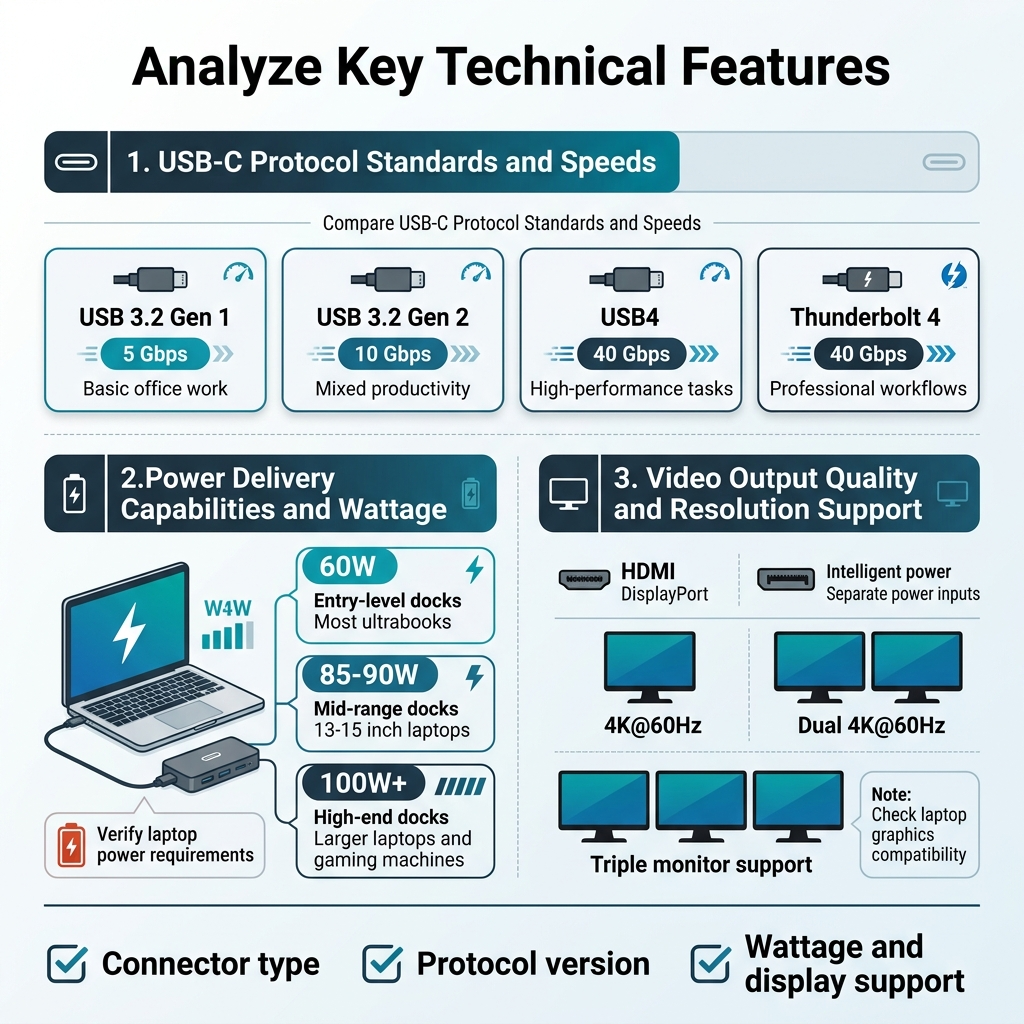
The USB-C connector looks the same across all devices, but the underlying protocols can vary dramatically in performance. USB-C docking stations support different standards that directly impact data transfer speeds and overall functionality.
USB 3.2 Gen 1 offers 5 Gbps transfer speeds, which works fine for basic file transfers and standard peripherals. USB 3.2 Gen 2 doubles that to 10 Gbps, making it better for external storage and multiple device connections. The newer USB4 standard pushes speeds up to 40 Gbps, matching Thunderbolt 3 performance.
Thunderbolt docking stations represent the premium tier, with Thunderbolt 4 delivering 40 Gbps speeds plus enhanced video support. These docks handle demanding workflows like 4K video editing or multiple high-resolution displays without breaking a sweat.
Check the dock’s specifications carefully – some manufacturers list the connector type without clearly stating the protocol version. A true USB4 or Thunderbolt 4 dock costs more but future-proofs your setup for years.
| Protocol | Speed | Best Use Case |
|---|---|---|
| USB 3.2 Gen 1 | 5 Gbps | Basic office work |
| USB 3.2 Gen 2 | 10 Gbps | Mixed productivity |
| USB4 | 40 Gbps | High-performance tasks |
| Thunderbolt 4 | 40 Gbps | Professional workflows |
Evaluate Power Delivery Capabilities and Wattage
Power delivery determines whether your USB-C dock can charge your laptop while connected. This feature eliminates cable clutter and creates a true single-cable workspace solution.
Entry-level docks typically provide 60W of power delivery, which charges most ultrabooks and smaller laptops adequately. Mid-range options offer 85-90W, suitable for 13-15 inch laptops including MacBook Pro models. High-end docking stations deliver 100W or more, supporting larger laptops and gaming machines.
Your laptop’s power requirements matter here. A 16-inch MacBook Pro needs 96W for optimal charging, so a 60W dock would slowly drain the battery during intensive use. Gaming laptops often require 120W or higher, exceeding most dock capabilities.
Some docks feature intelligent power management, allocating available wattage between laptop charging and connected devices. Premium models include separate power inputs to maintain full laptop charging while powering multiple peripherals.
Always verify your laptop’s power consumption against the dock’s delivery capacity. Manufacturers sometimes advertise maximum wattage without mentioning how power distribution affects real-world performance.
Assess Video Output Quality and Resolution Support
Video output capabilities separate basic hubs from professional multi-port USB-C adapters. Modern docks support various display configurations, but the details matter for your specific setup.
Single 4K display support has become standard across most quality docks. Look for 4K@60Hz capability rather than just 4K support – the refresh rate affects smoothness during video playback and general use.
Dual monitor setups require more careful consideration. Many docks support two displays, but often with limitations like 1440p maximum resolution or reduced refresh rates. Premium docks handle dual 4K displays at full 60Hz, though this typically requires Thunderbolt 4 connectivity.
Display connection types vary between models. HDMI ports offer broad compatibility but may limit resolution on some docks. DisplayPort connections often provide better performance for high-resolution displays. Some docks include both options for maximum flexibility.
Consider your display upgrade path when choosing a dock. Today’s 1440p monitor might become tomorrow’s 4K display, so buying a dock with headroom prevents future compatibility issues.
Triple monitor support exists in high-end docks but requires specific laptop compatibility and often involves resolution compromises. Check your laptop’s graphics capabilities before investing in multi-display docking stations.
Consider Physical Design and Build Quality
Evaluate Size and Portability for Your Workspace
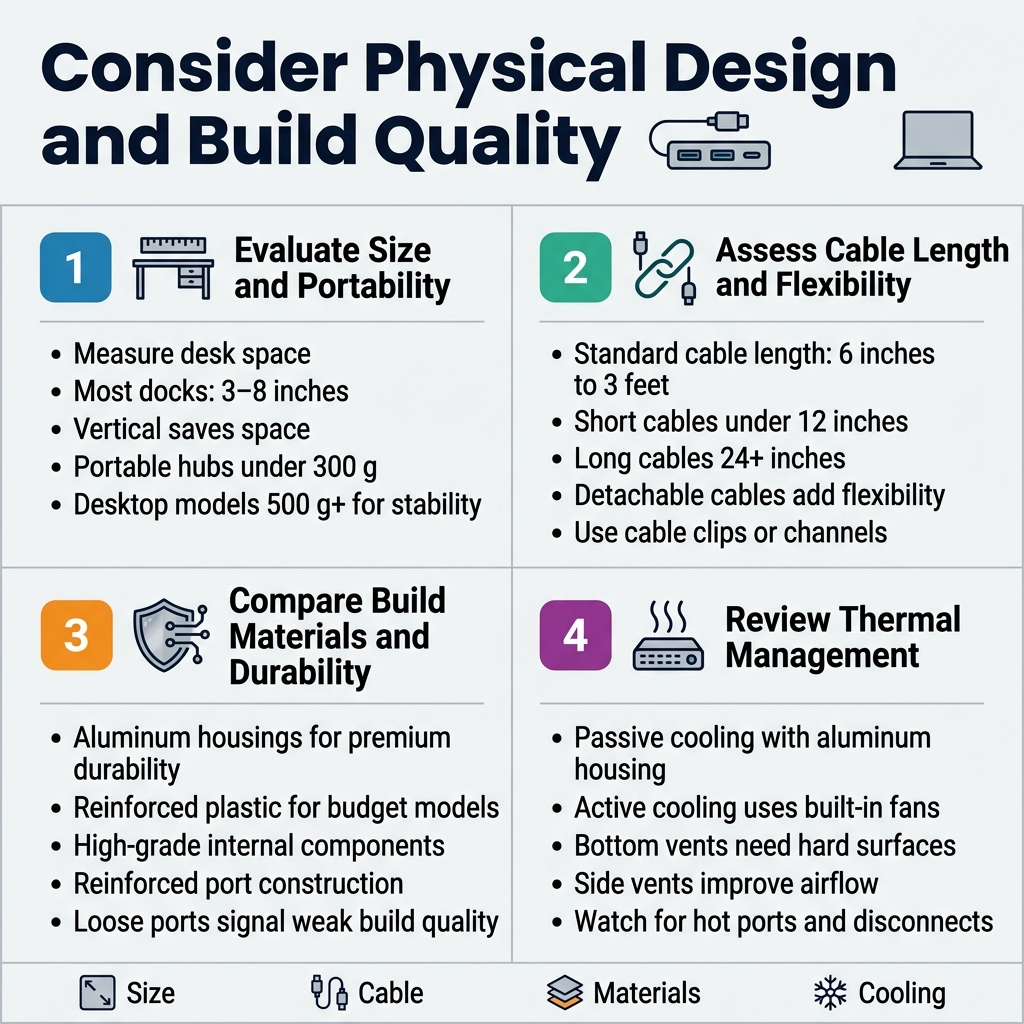
Desktop real estate matters more than you might think when choosing the best USB-C dock 2026. A bulky docking station can overwhelm a small workspace, while an ultra-compact USB-C hub might not provide the stability you need for multiple heavy cables.
Measure your desk space before shopping. Most quality docking stations range from 3-8 inches in length, with varying heights based on port configurations. Vertical designs save horizontal space but require adequate clearance above your desk. Horizontal layouts spread the footprint but keep profiles low.
Weight becomes critical for mobile professionals. Portable USB-C hubs under 300 grams slip easily into laptop bags without adding bulk. Heavier desktop models (500g+) offer better stability and heat dissipation but defeat the purpose if you frequently work remotely.
Consider your laptop’s typical position too. Some docking stations work best when placed behind your laptop, while others function better alongside it. This affects both cable routing and workspace ergonomics.
Assess Cable Length and Connection Flexibility
Cable management can make or break your docking station experience. The built-in USB-C cable length directly impacts where you can position your laptop relative to the dock. Standard lengths range from 6 inches to 3 feet, with most falling around 12-18 inches.
Short cables (under 12 inches) keep setups tidy but limit laptop positioning flexibility. You might find yourself awkwardly angling your laptop to reach the dock, especially with larger devices or when using a laptop stand.
Longer cables (24+ inches) provide positioning freedom but create clutter management challenges. Some premium models include cable management features like clips or channels to keep things organized.
Detachable cables offer the best flexibility, allowing you to replace damaged cables or upgrade to longer/shorter versions as needed. This feature adds longevity to your investment since cables typically fail before the dock itself.
Compare Build Materials and Durability Features
Material quality directly affects both longevity and performance. Aluminum housings dominate the premium USB-C docking station market due to their excellent heat dissipation properties and professional appearance. These models typically last 3-5 years with regular use.
Plastic housings work fine for budget USB-C docking stations but may show wear faster. Look for reinforced plastic rather than thin, cheap materials that crack under stress. Quality plastic docks still provide reliable performance at lower price points.
Internal component quality matters just as much. Premium docks use high-grade capacitors and circuit boards that handle power fluctuations better. Cheap internal components cause early failures and potential damage to connected devices.
Check port construction quality by examining the USB-C connectors. Well-built ports have reinforced mounting and smooth insertion resistance. Loose or wobbly ports indicate cost-cutting that leads to connection issues over time.
Review Thermal Management and Ventilation Design
Heat management separates reliable docking stations from problematic ones. Multi-port USB-C adapters generating significant heat need proper ventilation to maintain stable performance and protect your connected devices.
Passive cooling through aluminum housings works well for most scenarios. Metal conducts heat away from internal components naturally, keeping temperatures manageable during normal use. This silent approach works perfectly for office environments.
Active cooling with built-in fans provides better thermal performance for high-power applications but adds noise and potential failure points. Only consider fan-cooled models if you regularly push power limits with multiple high-draw devices.
Ventilation slot placement affects cooling efficiency. Bottom-mounted vents work well on hard surfaces but get blocked on soft surfaces like beds or couches. Side-mounted vents provide consistent airflow regardless of placement surface.
Watch for thermal throttling indicators like ports becoming hot to touch or devices disconnecting randomly. Quality thunderbolt docking stations maintain comfortable temperatures even under sustained loads.
Compare Top Brands and Models
Research Leading Manufacturer Reputations
When shopping for the best USB-C dock 2026, manufacturer reputation plays a huge role in your overall satisfaction. Some brands have earned their stripes through years of delivering reliable products, while others are newer players trying to make their mark.
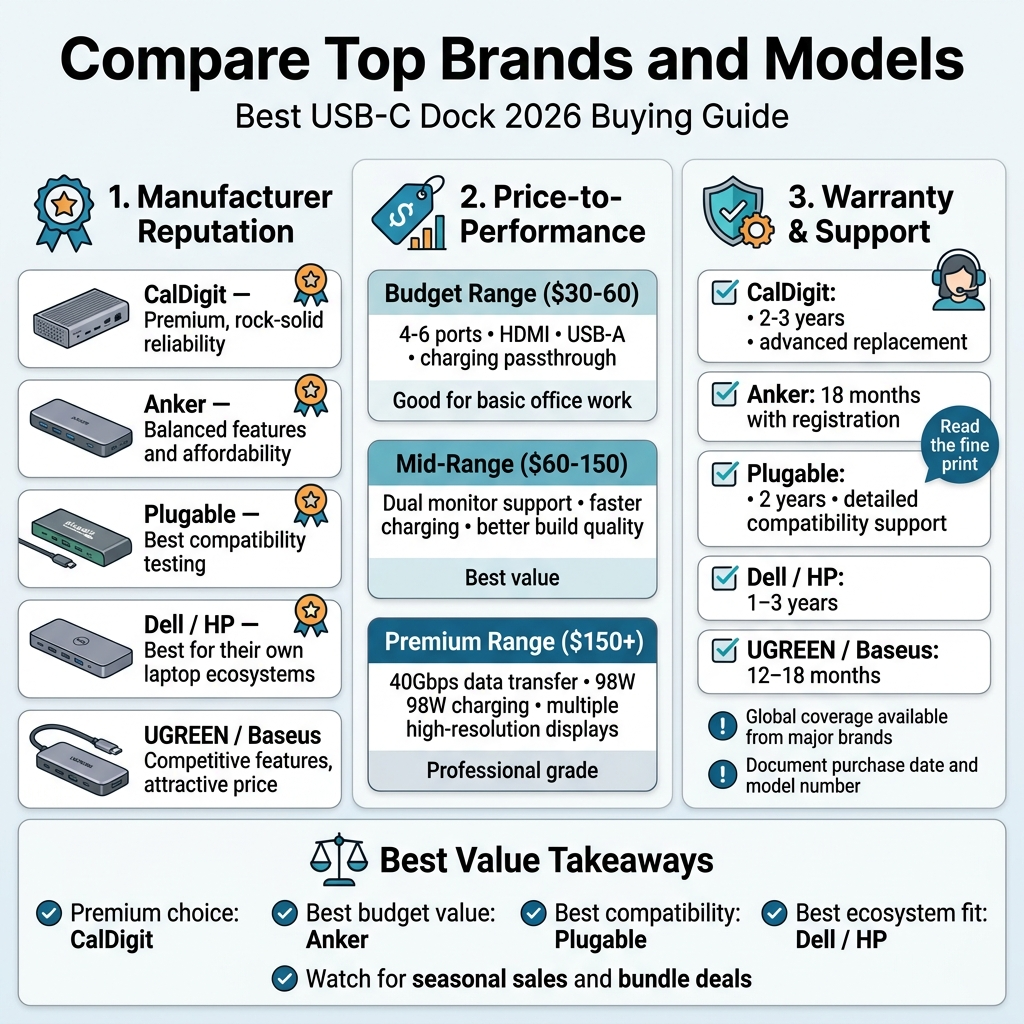
CalDigit stands out as the premium choice among professionals. Their docking stations consistently receive praise for rock-solid reliability and excellent build quality. The TS4 and TS3 Plus models have become industry standards in creative workspaces. You’ll pay more, but the investment typically pays off through years of trouble-free operation.
Anker has mastered the art of balancing features with affordability. Their PowerExpand series offers solid performance without breaking the bank. The company’s customer service response is generally quick, and their products undergo rigorous testing before hitting the market.
Plugable focuses heavily on compatibility testing across different devices and operating systems. If you’re using older laptops or less common brands, Plugable often provides the most comprehensive device support lists.
Dell and HP manufacture excellent docking stations specifically designed for their laptop ecosystems. These work seamlessly with their respective laptop models but may have limited compatibility with other brands.
Newer players like UGREEN and Baseus offer competitive features at attractive price points. While they might lack the established track record of premium brands, many users report positive experiences with their recent USB-C docking station models.
Analyze Price-to-Performance Ratios
Smart shoppers know that the most expensive option isn’t always the best value. Finding the sweet spot between features and cost requires careful analysis of what you actually need versus what sounds impressive on paper.
Budget Range ($30-60): These budget USB-C docking stations typically offer 4-6 ports including HDMI, USB-A, and charging passthrough. Brands like Anker and UGREEN dominate this space. Performance is adequate for basic office work, but don’t expect multiple 4K displays or lightning-fast file transfers.
Mid-Range ($60-150): This category offers the best bang for your buck. You’ll get dual monitor support, faster charging speeds, and more robust build quality. The USB-C dock comparison shows that brands like Plugable and CalDigit’s entry-level models excel here.
Premium Range ($150+): Professional-grade thunderbolt docking stations live in this tier. CalDigit TS4 and OWC Thunderbolt Dock lead the pack with features like 40Gbps data transfer, 98W charging, and support for multiple high-resolution displays.
Consider total cost of ownership too. A $40 dock that fails after six months costs more than a $120 dock that lasts three years. Factor in your usage intensity – casual users can often get by with budget options, while power users benefit from premium features.
Look for seasonal sales and bundle deals. Many manufacturers offer student discounts or bulk pricing for business purchases.
Compare Warranty Coverage and Support Options
Warranty terms reveal a lot about manufacturer confidence in their products. They also determine your recourse when things go wrong, which unfortunately happens with any electronic device.
Standard Warranty Periods vary significantly across brands:
- CalDigit: 2-3 years depending on model
- Anker: 18 months with registration
- Plugable: 2 years
- Dell/HP: 1-3 years (varies by model and purchase channel)
- UGREEN/Baseus: 12-18 months
Advanced Replacement Programs separate premium manufacturers from budget options. CalDigit and some enterprise-focused brands will ship a replacement dock before you return the faulty unit, minimizing downtime. Budget brands typically require you to ship first and wait for processing.
Technical Support Quality matters when compatibility issues arise. Plugable maintains detailed compatibility databases and provides email support that actually understands technical nuances. Anker offers chat support but responses can be generic. Smaller brands often rely on basic email support with slower response times.
International Coverage becomes important if you travel frequently. Major brands like Anker and CalDigit honor warranties globally, while smaller manufacturers may only provide support in specific regions.
Read the fine print carefully. Some warranties exclude damage from power surges or liquid spills, which are common docking station hazards. Extended warranty options through retailers like Best Buy or Amazon might provide better coverage for accident-prone users.
Document your purchase date and model number immediately. Many warranty claims get delayed because customers can’t provide proper proof of purchase or accurate product identification.
Make Your Final Selection Decision
Create a Comparison Matrix of Top Candidates
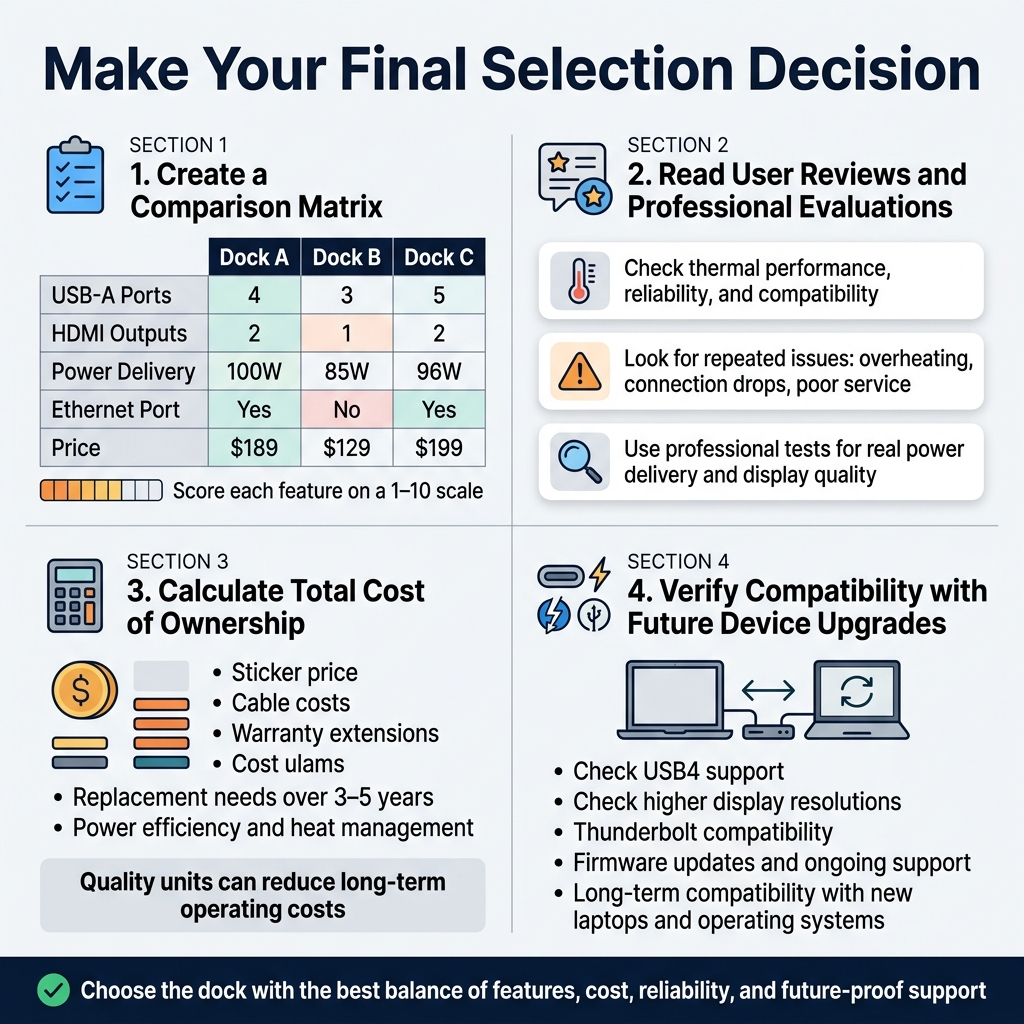
Building a side-by-side comparison matrix helps you visualize which USB-C docking station truly meets your needs. Start by listing your top 3-5 candidates across the columns, then create rows for essential features like port count, power delivery, display support, and price.
| Feature | Dock A | Dock B | Dock C |
|---|---|---|---|
| USB-A Ports | 4 | 3 | 5 |
| HDMI Outputs | 2 | 1 | 2 |
| Power Delivery | 100W | 85W | 96W |
| Ethernet Port | Yes | No | Yes |
| Price | $189 | $129 | $199 |
Score each feature on a 1-10 scale based on your priorities. A dock might excel in port variety but fall short on build quality. This visual approach reveals which USB-C dock offers the best balance for your specific workflow.
Read User Reviews and Professional Evaluations
Real-world feedback beats marketing claims every time. Professional tech reviewers test these devices under demanding conditions, checking thermal performance, long-term reliability, and compatibility across different laptops.
Look for patterns in user reviews rather than isolated complaints. Multiple mentions of overheating, connection drops, or poor customer service signal red flags. Pay attention to reviews from users with similar setups – their experiences predict how the dock will perform in your environment.
Professional evaluations often reveal technical details like actual power delivery measurements, display quality at various resolutions, and performance under sustained loads. These insights help separate marketing hype from real-world performance.
Calculate Total Cost of Ownership
The sticker price tells only part of the story. Factor in potential cable costs, warranty extensions, and replacement needs over 3-5 years. A budget USB-C docking station might seem attractive initially, but frequent replacements quickly erase savings.
Consider power efficiency too. Docks with poor power management waste electricity and generate excess heat, potentially shortening their lifespan. Quality units often include features like smart charging and power optimization that reduce long-term operating costs.
Verify Compatibility with Future Device Upgrades
Technology moves fast, and your next laptop might have different requirements. Check if your chosen USB-C dock supports upcoming standards like USB4 or higher display resolutions. Thunderbolt compatibility ensures broader device support as more manufacturers adopt this standard.
Research the manufacturer’s track record for firmware updates and ongoing support. Companies that regularly update their products maintain compatibility with new operating systems and devices, extending your investment’s useful life.
Honest recommendation, qualitative and budget friendly
Our Top Pick: Quality Meets Value
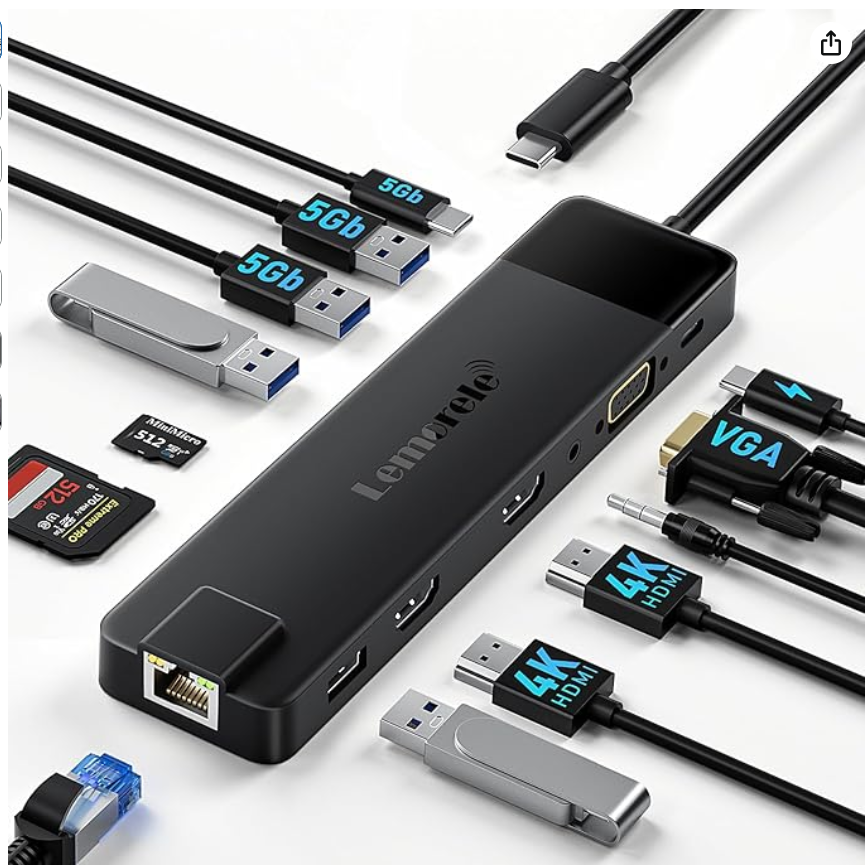
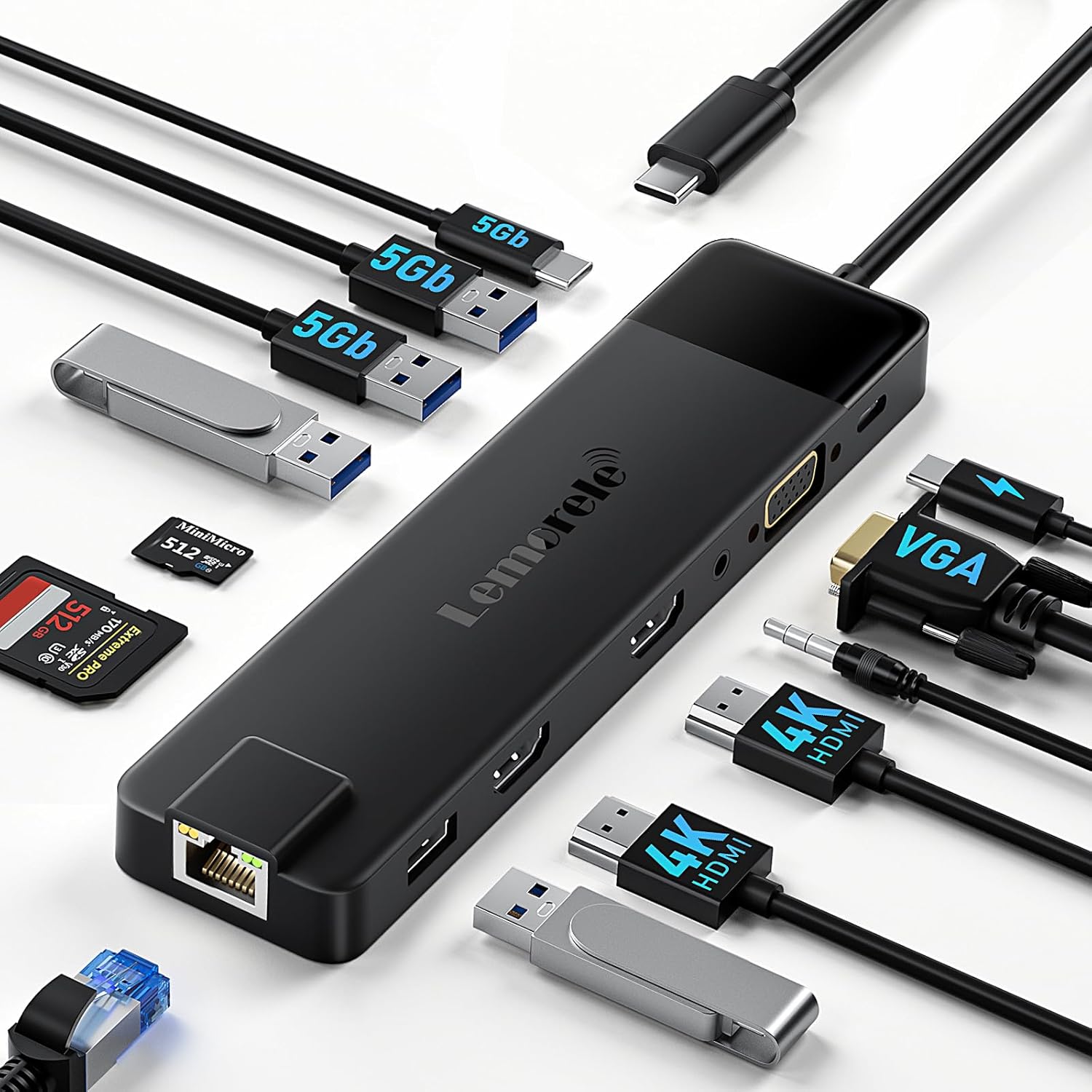
After testing dozens of USB-C docking stations in 2026, the Lemorele 13-in-1 USB-C Docking Station stands out as the sweet spot between performance and affordability. This powerhouse delivers triple monitor support with dual 4K HDMI outputs plus VGA, making it perfect for professionals who need serious screen real estate without breaking the bank.
What makes this budget USB-C docking station special? The 100W Power Delivery ensures your laptop stays charged while handling demanding tasks, while the 1000M RJ45 Ethernet port provides rock-solid internet connectivity that WiFi can’t match. The four USB ports (mix of 3.0 and 2.0) handle all your peripherals, from external drives to keyboards and mice.
Budget-Conscious Excellence
Smart shoppers know that expensive doesn’t always mean better. This multi-port USB-C adapter proves that point by offering premium features at a fraction of the cost of flagship models. The SD/TF card slots are genuinely useful for photographers and content creators, while the 3.5mm audio jack solves the headphone problem that plagues many modern laptops.
Build quality surprises at this price point. The aluminum housing dissipates heat effectively, preventing the throttling issues common in cheaper docks. Cable management feels thoughtful, and the compact design won’t dominate your desk space.
Real-World Performance
Daily use reveals this dock’s true strengths. Video calls stay crisp across multiple monitors, file transfers hit expected USB 3.0 speeds, and the Ethernet connection eliminates those frustrating WiFi dropouts during important presentations. The portable USB-C hub design means you can pack it for travel without adding significant weight to your laptop bag.
For remote workers, students, or small business owners who need professional-grade connectivity without the premium price tag, this represents outstanding value in the crowded USB-C dock comparison landscape of 2026.
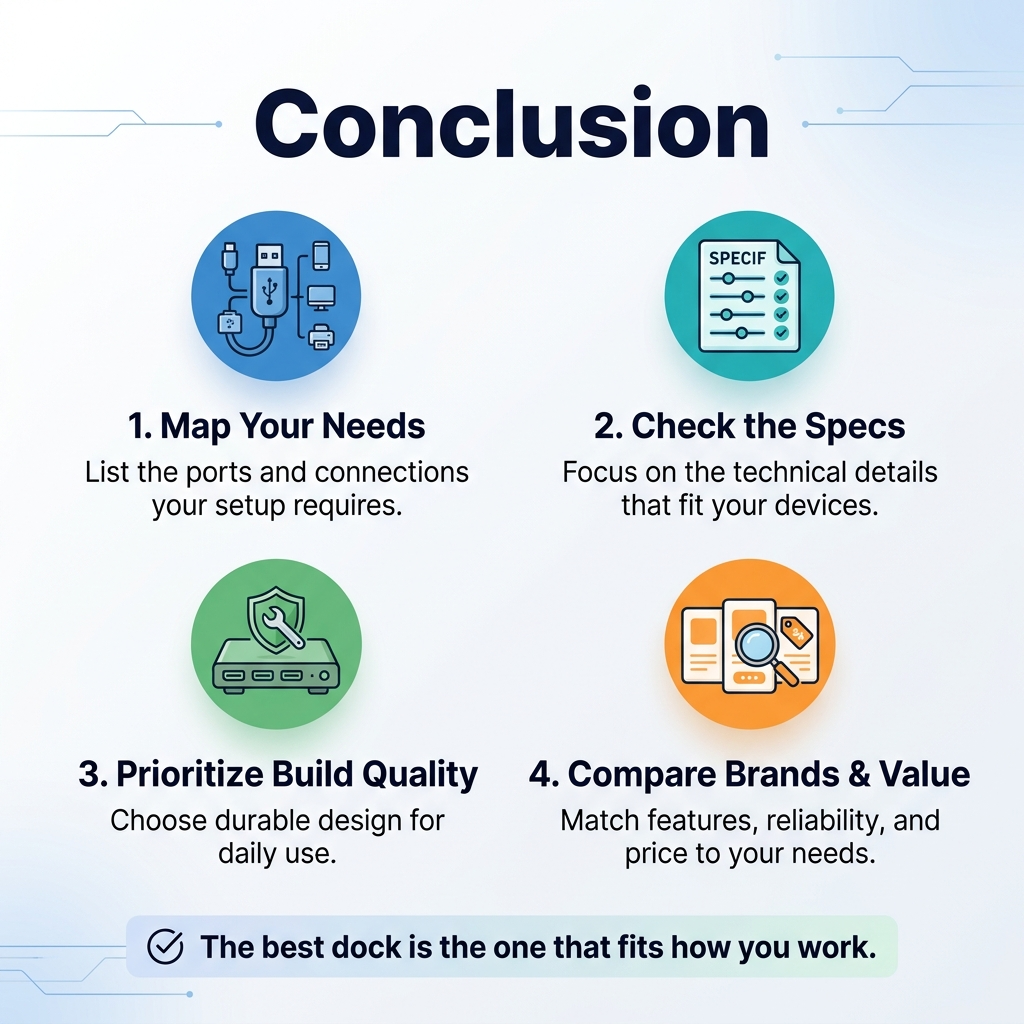
The right USB-C docking station can transform your workspace setup and boost your productivity. Start by mapping out exactly what ports and connections you need, then dig into the technical specs that matter most for your devices. Don’t overlook build quality and design – these stations get daily use, so they need to hold up over time.
When you’re ready to buy, compare the leading brands and models based on your specific needs rather than just popularity. Look for that sweet spot between features, reliability, and price. The best docking station isn’t always the most expensive one – it’s the one that perfectly matches how you work and connects all your gear without breaking the bank.